
TL;DR overview
- The SonarQube plugin for Cursor brings issue scanning, quality gate checks, code coverage, dependency risks, secrets scanning, and Agentic Analysis into Cursor through dedicated
sonar-*skills and the SonarQube MCP Server. - This setup fits Cursor users who want SonarQube results directly in their chat session instead of waiting on a PR or CI run.
- SonarQube findings and fixes inside Cursor compress the development cycle from prompting and PR-time review to analysis, remediation, and verification in a single chat session.
- Setup installs the SonarQube plugin from the Cursor marketplace, exposes the SonarQube MCP Server and
sonar-*skills from the chat box menu, and runs the skills against your project to surface and fix issues automatically.
This blueprint configures the SonarQube plugin for Cursor so that issue scanning, quality gates, coverage data, dependency risks, secrets detection, and Agentic Analysis are accessible from inside the same Cursor chat sessions that write your code. The integration comprises three things: the SonarQube plugin (installed from the Cursor marketplace), the SonarQube MCP Server it contributes, and the dedicated sonar-* skills Cursor exposes from the chat box menu. Our step-by-step walkthrough follows the Python-based AWS CLI, but the steps apply to any project written in any SonarQube-supported language.
When to use this
- You drive Cursor as your primary AI coding tool and want SonarQube capabilities available without leaving the chat.
- You want issue surfacing and rule-driven fixes inside the same sessions that write your code, not waiting on the next CI run or a PR-time review.
What you'll achieve
- SonarQube plugin installed in Cursor, with the SonarQube MCP Server and the
sonar-*skill set (includingsonar-analyze,sonar-fix-issue, andsonar-list-issues) visible and invocable from the chat box. - A working analysis flow that scans Cursor-generated code against your project on SonarQube Cloud, and then automatically surfaces issues, applies rule-driven fixes, and re-analyzes the code to confirm that every issue is resolved.
Architecture
The SonarQube plugin contributes two surfaces inside Cursor: an MCP server named sonarqube and the sonar-* skill set. Both are auto-discovered after install and both are reachable from the chat box menu. The MCP server is the bridge to SonarQube Cloud; it answers the MCP server-backed calls (list projects, list issues, fetch rule details, check quality gate, read coverage, etc.) over stdio. The local skill path handles on-disk analysis without sending file contents to the MCP server, which is what lets sonar-analyze surface findings on a net-new file the moment Cursor writes it.
Prerequisites
- Cursor installed and authenticated (Cursor 3.0 or later recommended)
- SonarQube Cloud account or SonarQube Server with the demo project on board
- Docker, Podman, or Nerdctl running; the MCP server runs as a container
- (Optional, but preferred) a
sonar-project.propertiesfile pointing to your project on SonarQube Cloud - (Optional) Agentic Analysis enabled at your SonarQube Cloud organization level (Administration > Agent-Centric Development)
Demo project: To follow along with this guide, fork the aws/aws-cli project to your GitHub account, import it into SonarQube Cloud with CI-based analysis enabled, and clone it locally.
Step 1 — Install the SonarQube plugin from the Cursor marketplace
Open the Cursor marketplace, search for the SonarQube listing, and click Get.
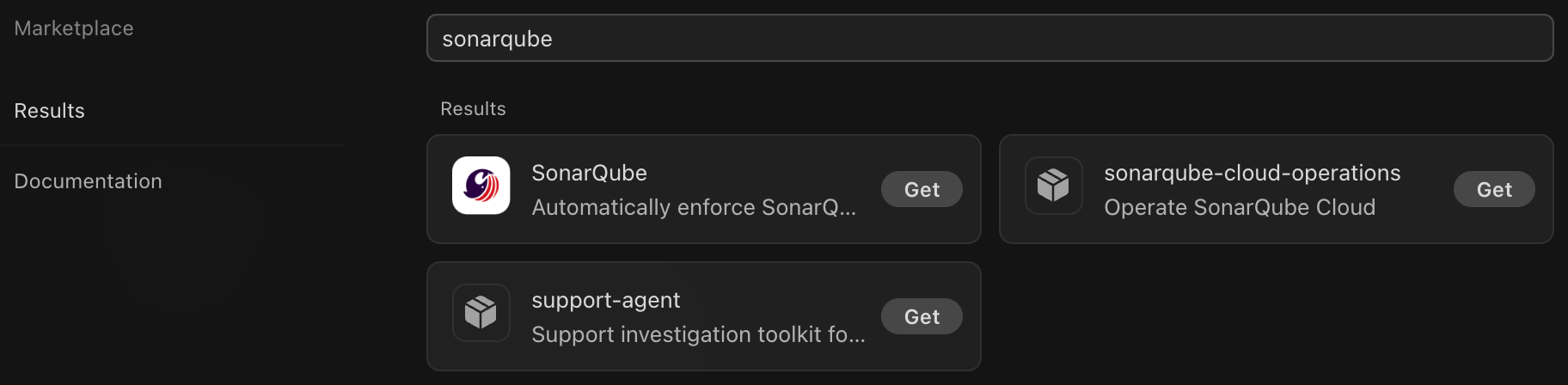
Sign in to your Cursor account if prompted. After installation, the plugin page displays two components: MCPs (with a single Sonarqube entry), and Skills (with the sonar-* entries).
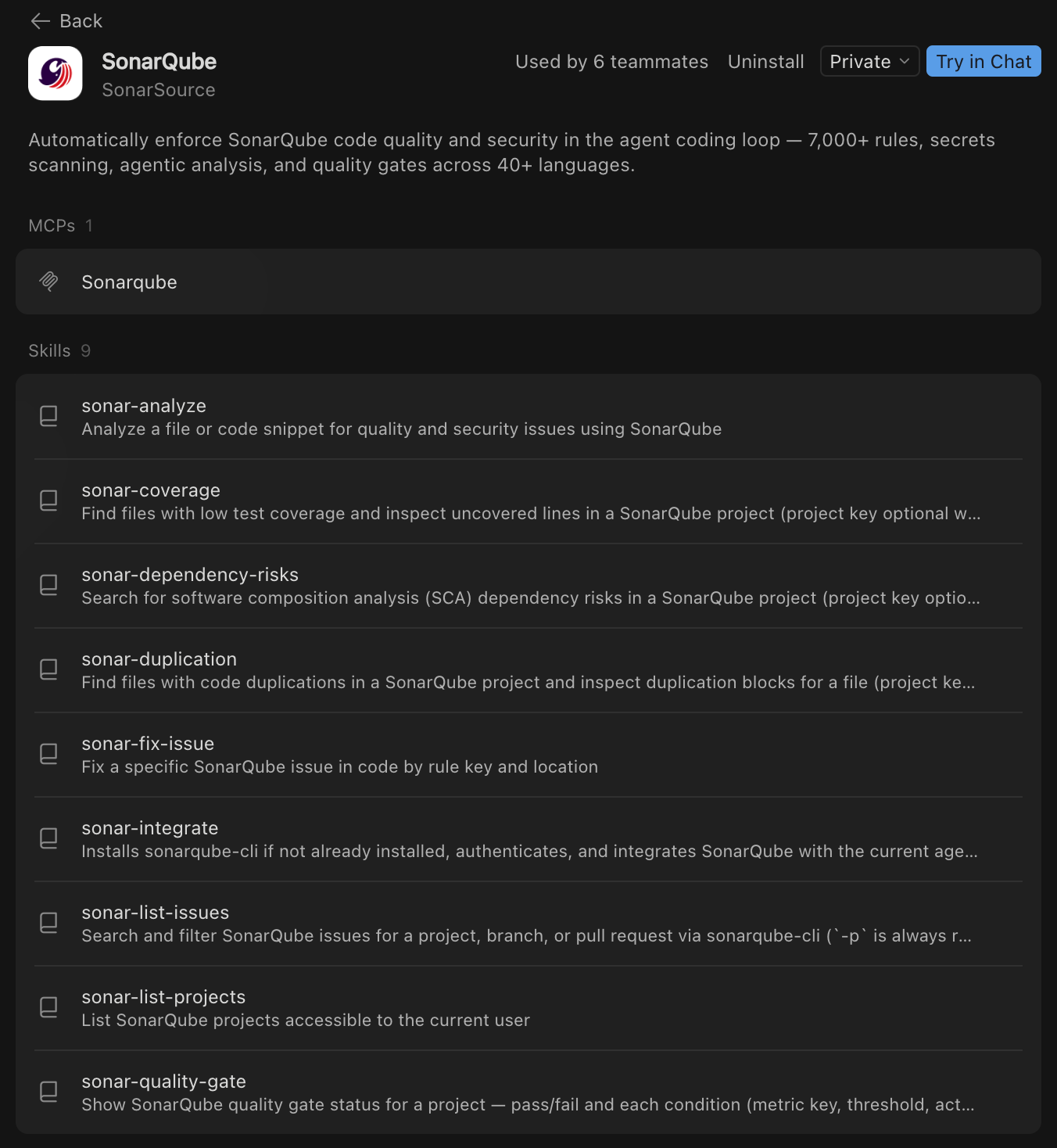
The plugin contributes both surfaces at once and Cursor handles the MCP registration and skill discovery on your behalf.
Step 2 — Verify the MCP server and skills are registered
Open a Cursor chat session in your project (aws-cli for the demo), then click the + icon in the chat box. Under MCP Servers, sonarqube should appear and be toggled on.
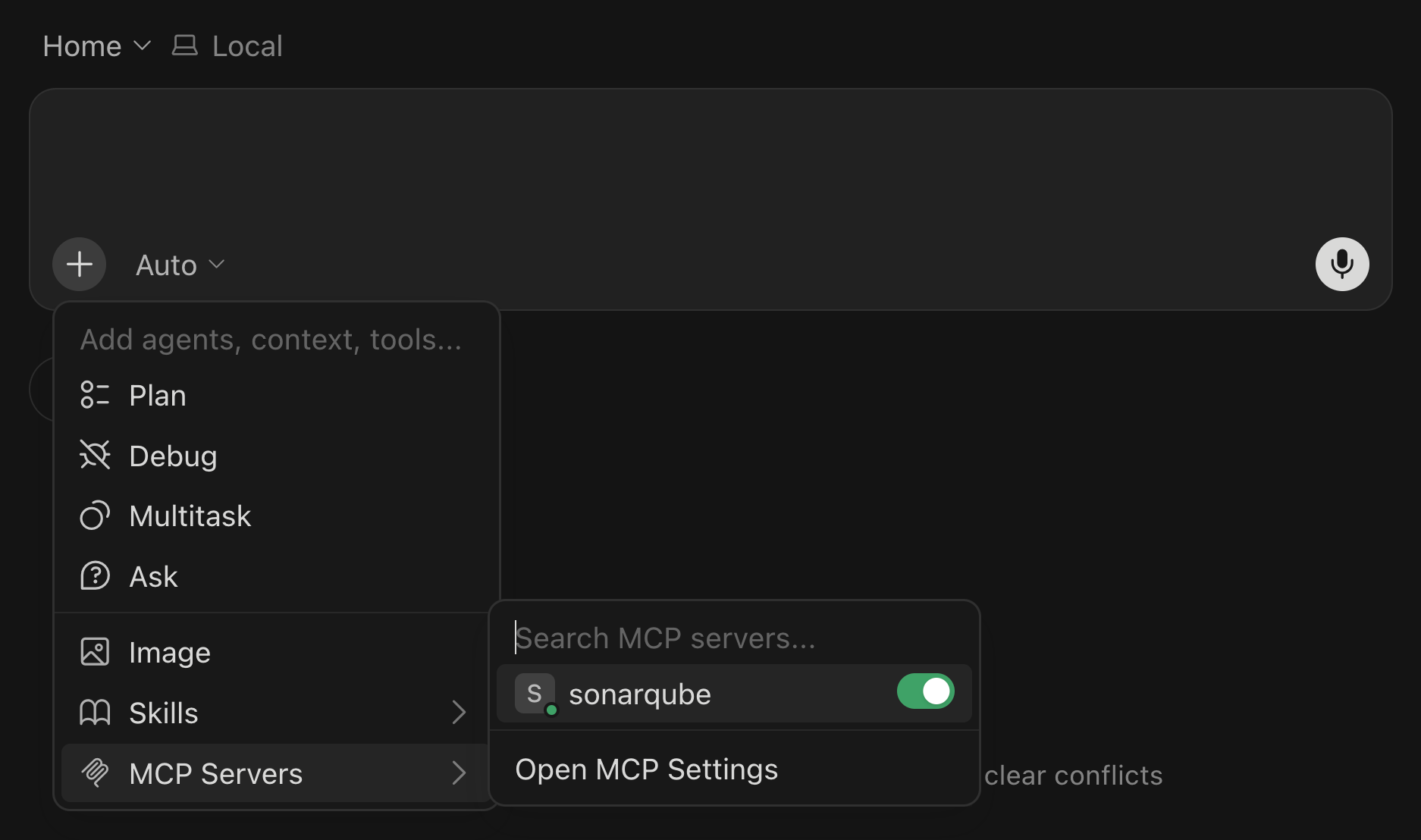
Then open the Skills panel from the same menu. You should see the full skill set, including:
sonar-integrate— setup walkthrough for the SonarQube integration.sonar-list-projects— list the SonarQube projects you have access to.sonar-list-issues— list open issues, with optional severity and status filters.sonar-fix-issue— apply a rule-driven fix to a specific issue, scoped by rule key and file.sonar-quality-gate— check the quality gate for a project or branch.sonar-analyze— analyze a project, file, or snippet for quality and security issues.sonar-coverage— review test coverage, with options to focus on a file or a coverage threshold.sonar-duplication— review duplications, scoped to the project or a pull request.sonar-dependency-risks— surface SCA dependency risks for a project or pull request.
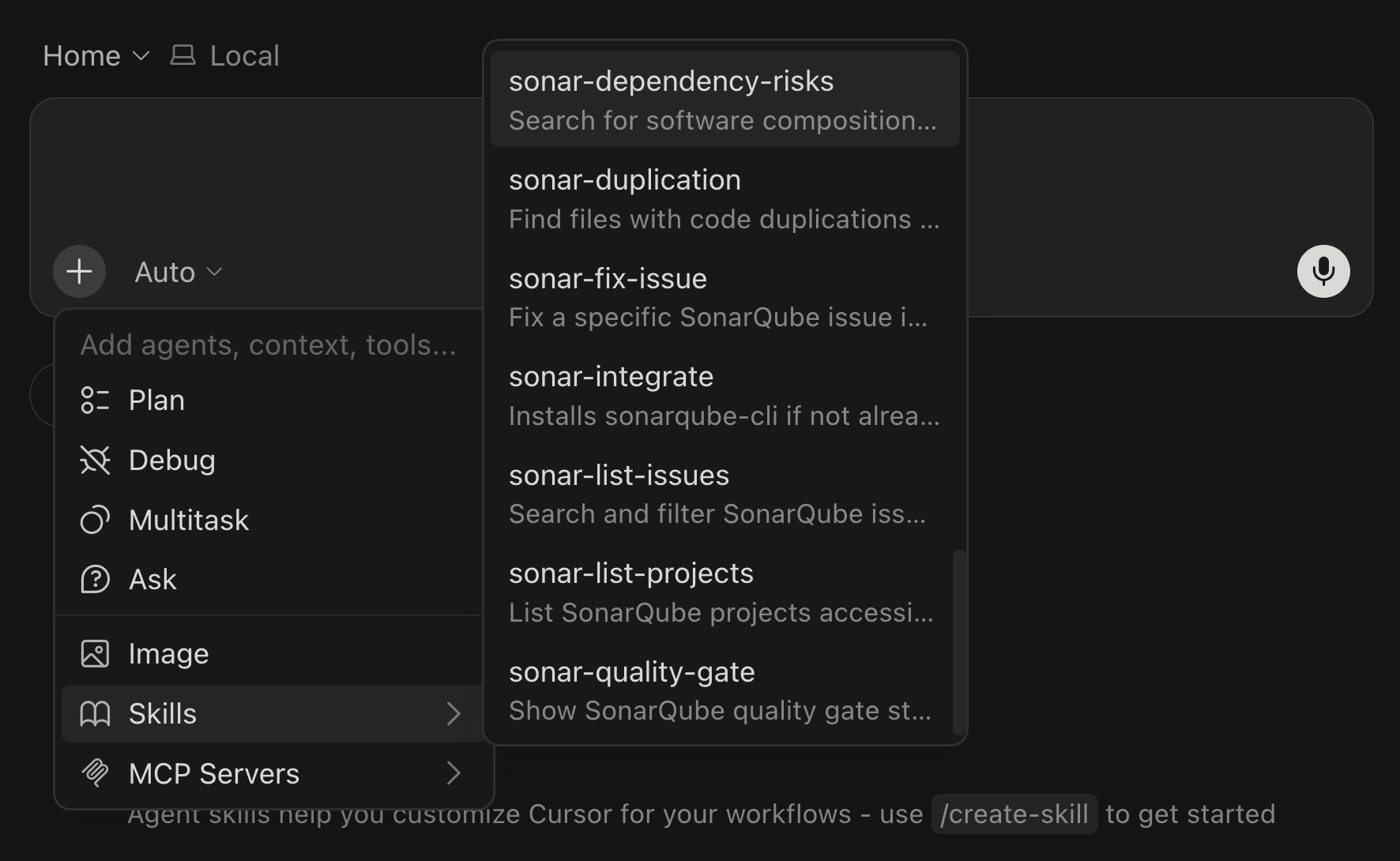
You can invoke any skill by name (e.g., sonar-analyze s3_helper.py) or in natural language (e.g., sonarqube analyze s3_helper.py for any issues); Cursor routes both to the same place.
Step 3 — Write code with Cursor
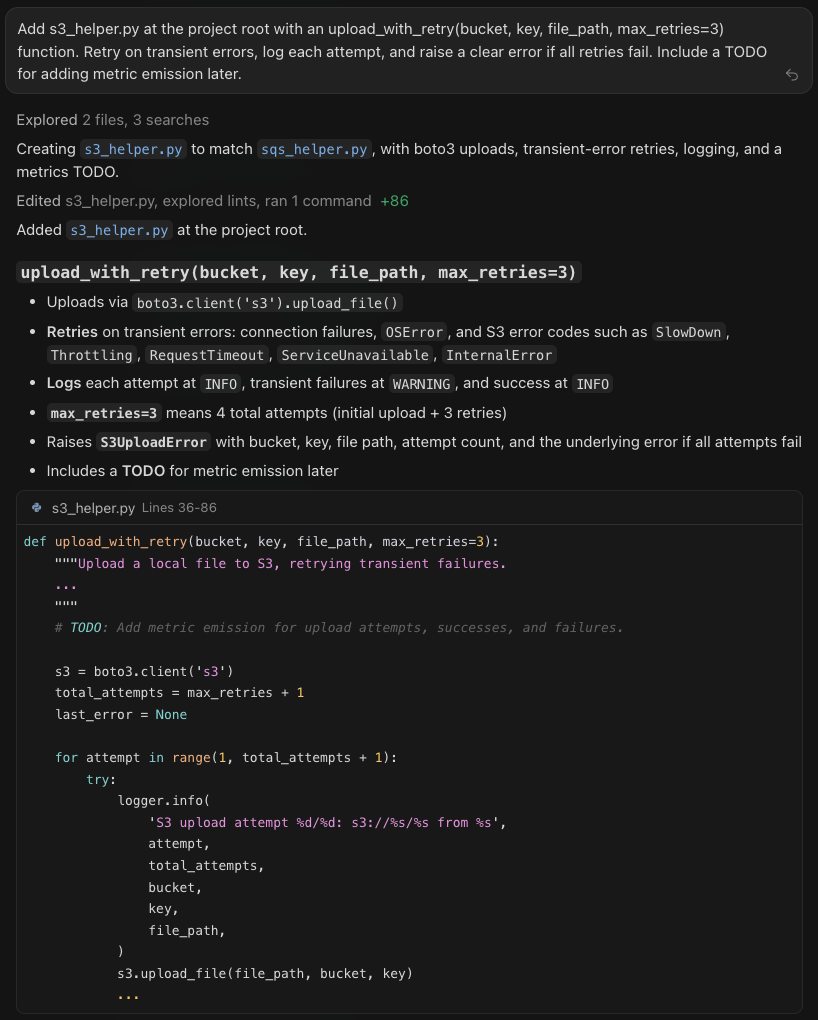
In the chat box, prompt Cursor to write a small module in your aws-cli checkout:
Add s3_helper.py at the project root with an upload_with_retry(bucket, key, file_path, max_retries=3) function. Retry on transient errors, log each attempt, and raise a clear error if all retries fail. Include a TODO for adding metric emission later.Cursor writes s3_helper.py to the project root with a boto3.client('s3').upload_file(...) call inside a retry loop, an S3UploadError for terminal failures, structured logging at each attempt, and the TODO comment you asked for. The function signature is upload_with_retry(bucket, key, file_path, max_retries=3) and max_retries=3 means four total attempts.
Step 4 — Analyze the new code with SonarQube
The file is present on disk but hasn't been analyzed yet. Instruct the plugin to scan it for any issues:
sonarqube analyze s3_helper.py for any issuesCursor invokes the sonar-analyze skill, which runs analysis on the file as it sits in your working tree, surfacing the following findings:
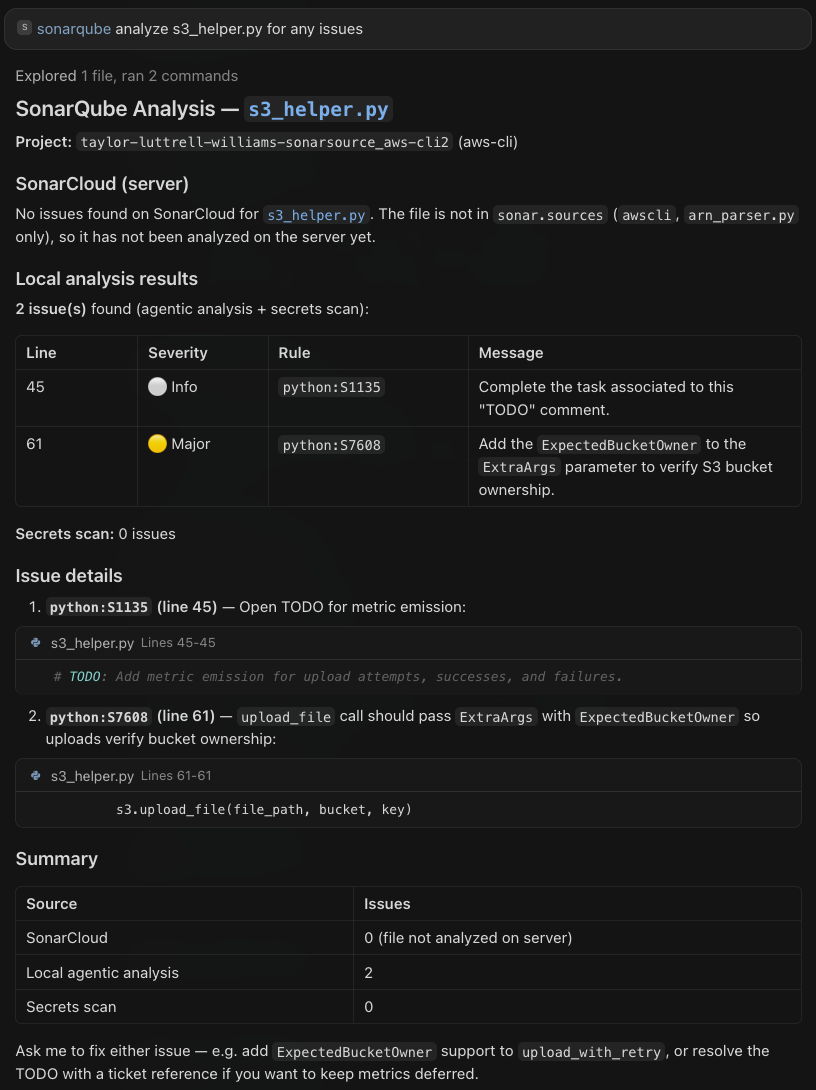
python:S7608 is the catch worth investigating. It's a Major-severity security rule that exists because an S3 upload_file call without ExpectedBucketOwner can silently succeed against a bucket whose ownership has changed out from under the caller. The TODO finding (python:S1135) is the one Cursor was explicitly asked to add in Step 3; as it's expected, we'll ignore it for now and handle the security rule deliberately.
Step 5 — Fix the issue with SonarQube
Ask the plugin to apply a scoped, rule-driven fix:
sonarqube fix the issue in s3_helper.py by adding ExpectedBucketOwner support to upload_with_retryCursor invokes sonar-fix-issue. Because the prompt names the rule and the function, the fix stays scoped: the signature gets a new required expected_bucket_owner parameter, the upload threads it through ExtraArgs, and the attempt logs include the owner ID.
def upload_with_retry(
    bucket, key, file_path, expected_bucket_owner, max_retries=3
):
    ...
    extra_args = {'ExpectedBucketOwner': expected_bucket_owner}
    ...
            s3.upload_file(file_path, bucket, key, ExtraArgs=extra_args)
A caller now passes the AWS account ID alongside the bucket and key:
upload_with_retry(
    "my-bucket",
    "backups/data.json",
    "/tmp/data.json",
    "123456789012",
)
The plugin re-analyzes the file after the fix and reports the result inline:
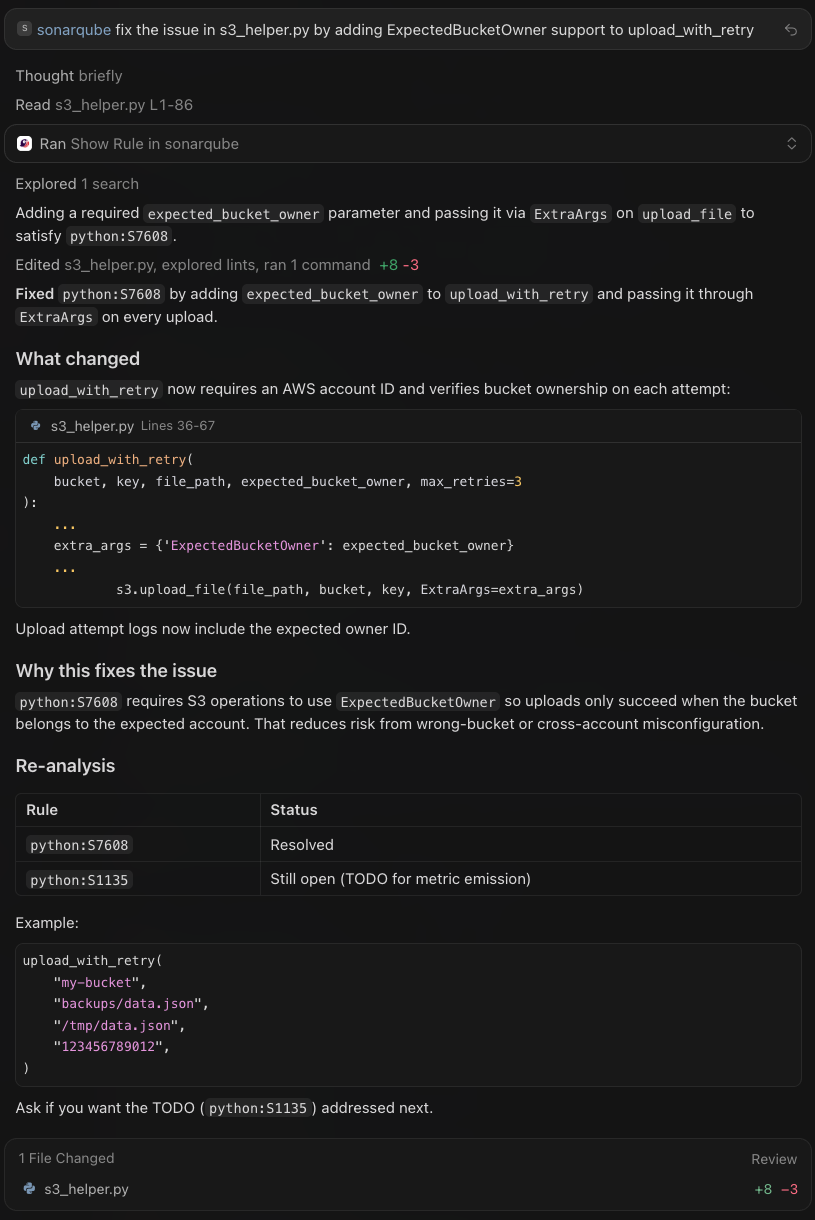
The TODO stays open because we never asked the plugin to resolve it; if you want it gone, ask sonar-fix-issue to handle python:S1135 next.
Verify the setup
By the end of Step 2, you have a working SonarQube + Cursor integration. The end state across your system should reflect:
- The SonarQube plugin registered in Cursor.
- The SonarQube MCP Server visible and toggled on in the chat box menu.
sonar-*skills auto-discovered and selectable/invocable from the chat box.
If anything drifts (e.g., the MCP server stops appearing in the menu or skills return empty results), run sonar auth login and restart Cursor.
What to know
- The plugin is installed and managed entirely from the Cursor marketplace UI. Unlike with the plugins for Codex and Copilot CLI, there is no
sonar integrate cursorcommand. - The
sonarqubeMCP server runs as amcp/sonarqubecontainer under your local container runtime. If the MCP doesn't appear in the chat box menu after installation, confirm Docker is running and restart Cursor. sonar-fix-issueis rule-aware: pass a specific rule key (e.g.,python:S7608) and the file path to get a deterministic, scoped change. A broad "fix all the issues" prompt will work, but a rule-scoped prompt is the predictable path.- If you also use the SonarQube for IDE extension inside Cursor, the two are complementary. The extension drives real-time editor feedback through Connected Mode, while this plugin drives the in-chat agent loop.
Next steps
- Set up the SonarQube Plugin for Claude Code, GitHub Copilot CLI, and more
- Read A developer's guide to integrating SonarQube MCP Server with Cursor for the MCP-only setup path
- Configure the SonarQube for IDE extension in Cursor for real-time editor feedback alongside the plugin
- Dive deeper into the SonarQube MCP Server docs
- Connect the Guide, Verify, and Solve dots with Sonar's Agent Centric Development Cycle framing
