
Author: Taylor Luttrell-Williams
TL;DR overview
- Deploy SonarQube Server Enterprise on Azure AKS with this repeatable, step-by-step Terraform guide.
- Provision AKS, PostgreSQL, and TLS for SonarQube Server Enterprise on Azure AKS in three commands.
- Secure your code quality analysis using a private network architecture for SonarQube Server Enterprise on Azure AKS.
SonarQube Server Enterprise Edition is built for organizations that need code quality analysis at scale, but traditional methods of deployment can introduce unnecessary complexity. Installing it on Azure Kubernetes Service (AKS), however, enables you to make simple, repeatable deployments and upgrades with minimal intervention. In fact, it only takes three Terraform commands to provision your SonarQube Server on AKS. This step-by-step guide covers what to configure before you run them as well as what to expect at each step.
How does the SonarQube Server deployment work?
Terraform drives the entire deployment (from the AKS cluster and VNet, to the Helm release itself) as a single, declarative configuration. terraform apply provisions everything in the correct order; terraform destroy tears it all back down. SonarQube deploys via the official Helm chart from Sonar, with dynamic values overlaid by Terraform at apply time. Once running, SonarQube integrates with GitHub, Azure DevOps, GitLab, and Bitbucket to analyze pull requests and branches.
SonarQube Server deployment architecture
Our Terraform templates provision eight Azure resources inside a single Virtual Network. The AKS cluster runs two node pools: a system pool for cluster management workloads, and a dedicated SonarQube pool tainted so that no other workloads are scheduled there. The SonarQube pod runs on that dedicated node as a Helm-managed StatefulSet, backed by an Azure Managed Disk that persists Elasticsearch indexes across restarts. Azure Database for PostgreSQL Flexible Server runs in its own delegated subnet with no public endpoint; all traffic between the SonarQube pod and the database stays within the private network via a private DNS zone. Inbound HTTPS traffic enters through Azure DNS, reaches the Application Gateway (which terminates TLS using a Let's Encrypt certificate issued and renewed automatically at deploy time) and forwards requests to the SonarQube Kubernetes service. Azure Log Analytics and Application Insights collect container logs and application telemetry.
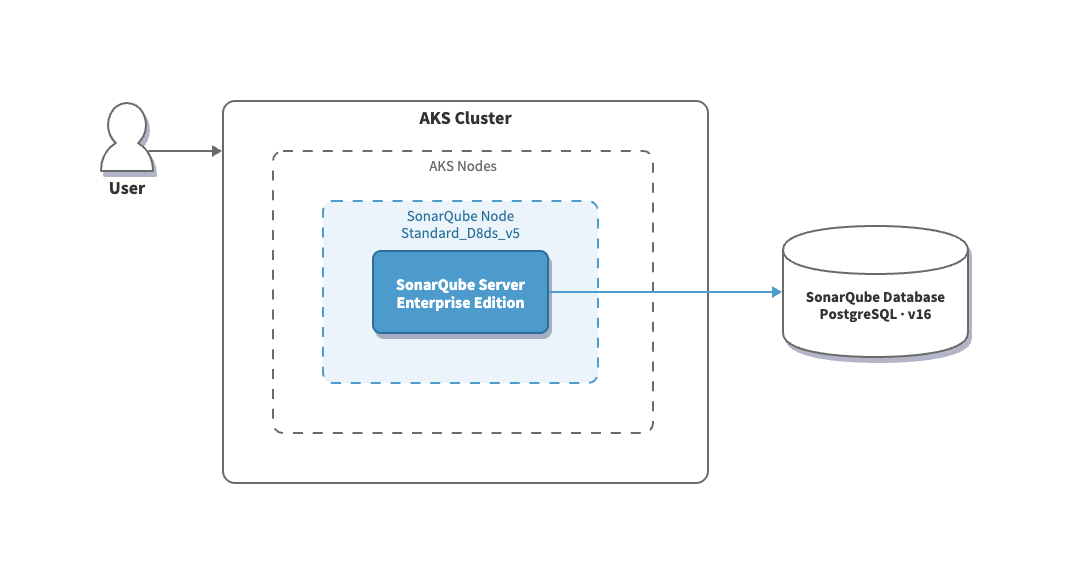
What you're building
The Terraform templates provision the following Azure infrastructure from scratch:
Prerequisites
Check each item before cloning the Terraform templates repo. Omitting any of these pre-reqs will cause the deployment to fail partway through.
Tools:
- Terraform — install guide
- Azure CLI — install guide, then run
az login
Azure resources (must exist before terraform apply):
- An active Azure subscription with sufficient quota for
Standard_D2s_v5andStandard_D8ds_v5VMs in your target region - A registered domain with an Azure DNS zone configured (e.g.,
example.com) - The resource group name that contains that DNS zone (may differ from the resource group the templates will create)
- DNS delegation in place: your registrar's nameservers must point to the Azure DNS zone nameservers
Sonar:
- A SonarQube Server Enterprise Edition license key
Note on CIDR blocks: The default subnet ranges in the example config file (10.0.0.0/16,10.0.1.0/24, etc.) must not overlap with any existing VNets in your Azure environment. If you have existing infrastructure in the same subscription, adjust the CIDR values before applying.
Fetch the templates
Clone the Terraform templates repo and move into the project directory:
git clone https://github.com/sonar-solutions/sonarqube-server-azure-aks-installation.git
cd sonarqube-server-azure-aks-installation
The templates are organized across several .tf files, each responsible for a distinct layer of infrastructure. You won't need to edit any of them. All of the configuration lives in one place: terraform.tfvars.json.
Key files for reference:
Configure your deployment
Copy the example config file:
cp terraform.tfvars.json.example terraform.tfvars.jsonOpen terraform.tfvars.json and populate it with your values. Every variable is documented below.
General Settings
Networking
All four components share a single VNet. PostgreSQL has no public endpoint. It communicates with AKS only over the private network via a dedicated delegated subnet and a private DNS zone.
DNS and TLS
If you're unsure which resource group contains your DNS zone, search for it in the Azure Portal under DNS zones > your zone > Resource group.
Use the Let's Encrypt staging server for test runs. The production ACME endpoint enforces rate limits. If you're testing or iterating on the deployment, set acme_server_url to "https://acme-staging-v02.api.letsencrypt.org/directory" to avoid hitting those limits. Switch back to the production URL for your final deployment.
Certificate issuance is fully automated via a DNS-01 challenge. Terraform creates the required DNS record, requests the certificate, and configures the Application Gateway to serve it. No manual certificate steps are required.
AKS Cluster
The Standard_D8ds_v5 node is reserved exclusively for SonarQube via a Kubernetes taint. Nothing else is scheduled there.
Note on node pools: Despite the name, each pool in this deployment contains exactly one node: one Standard_D2s_v5 VM for the system pool and one Standard_D8ds_v5 VM for SonarQube. A node pool is simply a group of nodes that share the same configuration; the count is controlled by sonarqube_node_count. The default of 1 is correct for a single-replica StatefulSet. You'd only increase it if scaling SonarQube's infrastructure to handle much higher analysis throughput.
PostgreSQL
postgresql_server_name must be unique across all Azure customers globally, not just within your subscription. If sonarqube-pg-prod is already taken, prefix it with your company or project name (e.g., acme-sonarqube-pg). Note that terraform plan won't catch a name conflict as Azure validates uniqueness at creation time.
The database password is auto-generated by Terraform (32-character random string) and stored as a Kubernetes secret. You don't set it and you don't need to know it.
SonarQube
Leaving sonarqube_chart_version empty installs the latest available chart version. Setting it to a specific version like "2026.2.1" gives you a reproducible, pinned deployment. Neither is universally the right choice: pinning gives you control over when upgrades happen; latest keeps you current without manual intervention.
Complete Example
A completed file looks like this:
{
  "resource_group_name": "sonarqube-prod-rg",
  "location": "eastus",
  "environment": "Production",

  "vnet_cidr": "10.0.0.0/16",
  "aks_subnet_cidr": "10.0.1.0/24",
  "appgw_subnet_cidr": "10.0.2.0/24",
  "postgresql_subnet_cidr": "10.0.3.0/28",

  "acme_email": "platform@your-company.com",
  "domain_name": "your-company.com",
  "dns_resource_group_name": "dns-rg",
  "host_name": "sonarqube",

  "cluster_name": "sonarqube-aks",
  "kubernetes_version": "1.35",
  "system_node_vm_size": "Standard_D2s_v5",
  "node_vm_size": "Standard_D8ds_v5",
  "sonarqube_node_count": 1,

  "postgresql_server_name": "acme-sonarqube-pg",
  "db_name": "sonarqube",
  "db_username": "sqadmin",
  "postgresql_sku": "GP_Standard_D4ds_v4",
  "postgresql_version": "16",
  "postgresql_storage_mb": 131072,

  "sonarqube_chart_version": "",
  "sonarqube_namespace": "sonarqube"
}
Deploy
With terraform.tfvars.json configured, you're ready to deploy. Simply run the following three commands:
1. Initialize Terraform
terraform initThis downloads the required provider plugins and should result in:
Terraform has been successfully initialized!2. Preview the Plan
terraform planTerraform shows every resource it will create without making any changes. Review the output, particularly the networking and database sections, to confirm your CIDR blocks and naming appear correct.
The plan should close with something akin to:
Plan: 37 to add, 0 to change, 0 to destroy.If the plan fails, the most common causes are authentication (az login has expired) or a DNS zone that can't be found (double-check domain_name and dns_resource_group_name).
3. Apply
terraform applyTerraform prints the plan again and prompts for confirmation. Type yes.
The full deployment typically takes 10-20 minutes. The Application Gateway and PostgreSQL zone-redundant HA provisioning are the longest steps. If it appears stalled at either step, wait; it will complete.
Three things happen automatically in the background:
- TLS certificate: Terraform registers with Let's Encrypt, creates a DNS validation record in your Azure DNS zone, obtains the certificate, and configures the Application Gateway. No manual steps required.
- Database password: A 32-character random password is generated and stored directly as a Kubernetes secret. It's passed to SonarQube via the Helm chart's
jdbcOverwriteconfiguration. You never handle it directly. - Helm release: Terraform deploys SonarQube via the official Helm chart from
https://SonarSource.github.io/helm-chart-sonarqube. The chart waits up to 15 minutes for the pod to become ready before reporting success.
When terraform apply completes, it prints the deployment outputs:
Apply complete! Resources: 37 added, 0 changed, 0 destroyed.

Outputs:

aks_cluster_name                  = "sonarqube-aks"
aks_get_credentials_command       = "az aks get-credentials --resource-group sonarqube-prod-rg --name sonarqube-aks --admin"
application_gateway_public_ip     = "20.x.x.x"
dns_record_fqdn                   = "sonarqube.your-company.com"
postgresql_fqdn                   = "acme-sonarqube-pg.postgres.database.azure.com"
sonarqube_helm_status             = "deployed"
sonarqube_namespace               = "sonarqube"
sonarqube_url                     = "https://sonarqube.your-company.com"
sonarqube_helm_status = "deployed" confirms the Helm release succeeded.
If the Helm release times out: SonarQube can take longer than 15 minutes on first startup while Elasticsearch builds its indexes. Re-run terraform apply and it will pick up where it left off, skipping resources that already exist and retrying the Helm release.
Access SonarQube
Open SonarQube
Navigate to the URL from the sonarqube_url output. To retrieve it at any time:
terraform output sonarqube_urlThe login screen should appear, served over HTTPS:
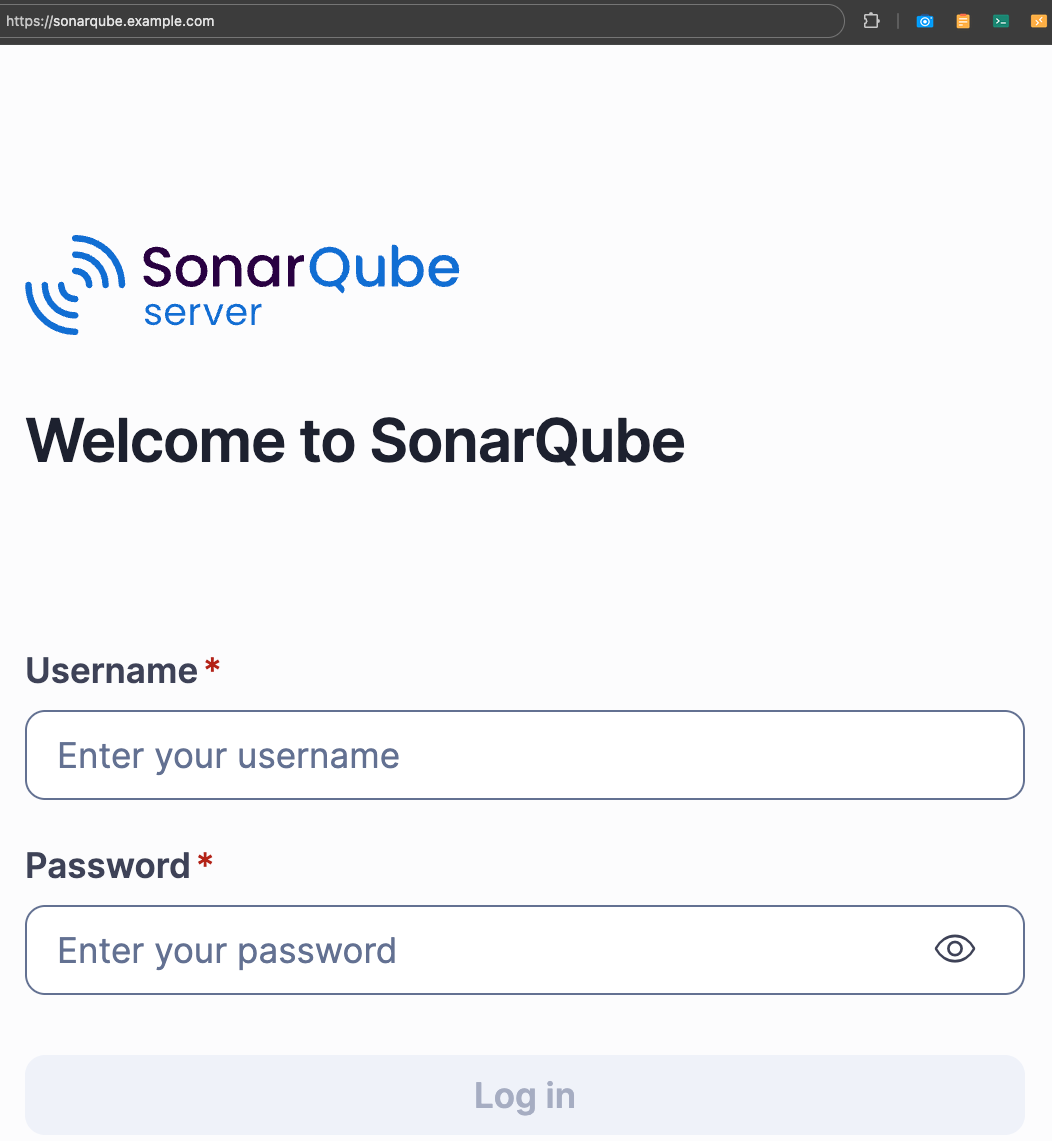
If the page doesn't load immediately, wait a few minutes. Elasticsearch index initialization runs at startup and can delay the first response.
First login
Log in with the default credentials:
- Username:
admin - Password:
admin
Change the default password immediately. SonarQube prompts you to do this on first login.
Activate your license
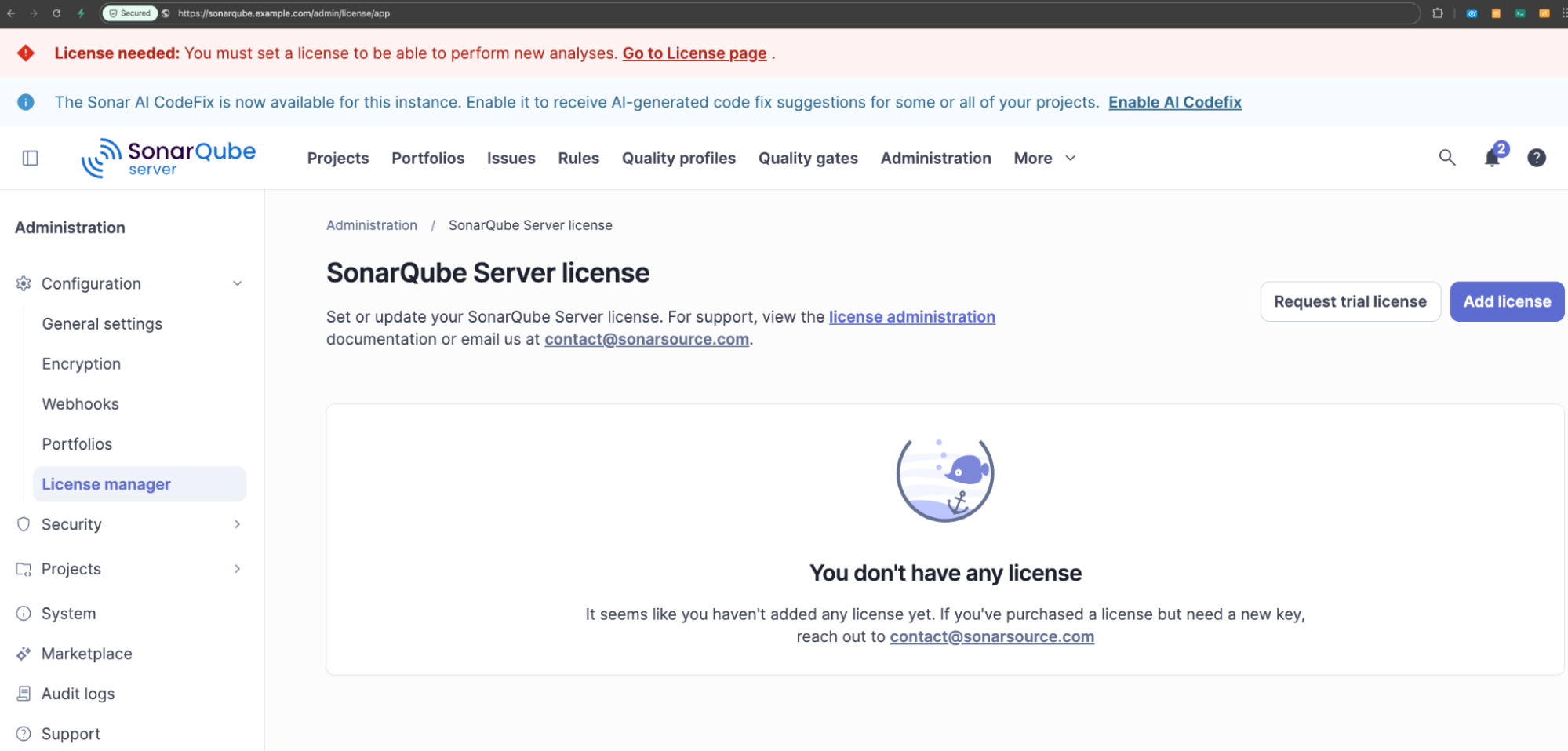
After setting a new password, activate your Enterprise Edition license:
- Click Administration in the top navigation bar
- Go to Configuration > License manager > Add license
- Paste your SonarQube Server Enterprise Edition license key
Upgrade SonarQube
To upgrade to a new chart version, update sonarqube_chart_version in terraform.tfvars.json:
"sonarqube_chart_version": "2026.2.1"Then apply:
terraform applyTerraform updates the Helm release in-place. All SonarQube data persists in the PostgreSQL Flexible Server, so there's no data loss during an upgrade. Before upgrading across major versions, check the SonarQube Server release notes for any migration requirements.
Cleanup
To remove all provisioned Azure resources:
terraform destroyThis permanently deletes the PostgreSQL Flexible Server and all analysis data. If you want to preserve SonarQube's history, take a PostgreSQL backup first: Azure Portal > your PostgreSQL Flexible Server > Backup and Restore > Backup now.
After confirming with yes, Terraform tears down all 37 resources. The operation takes roughly the same time as the initial deployment.
Conclusion
At this point, SonarQube Server Enterprise Edition is running on AKS with a private managed database, automated TLS, a dedicated node pool, and persistent storage all defined in version-controlled Terraform. From here, connect your repositories, configure your quality gates, and start analyzing.
