
TL;DR overview
- The SonarQube plugin for GitHub Copilot CLI brings quality gate, dependency risk, coverage, and issue checks into Copilot CLI through dedicated slash commands.
- SonarQube plugin skills assist terminal-driven Copilot workflows where there’s no editor UI in the loop.
- SonarQube Agentic Analysis findings and fixes compress the development cycle from CLI prompting and PR-time review to analysis, remediation, and verification in one terminal session.
- Setup installs the SonarQube plugin and CLI, then wires the SonarQube MCP Server into Copilot CLI so the agent can reach the SonarQube analysis engine.
This blueprint configures the SonarQube plugin for GitHub Copilot CLI so that quality gates, issue scanning, coverage data, dependency risks, secrets detection, and Agentic Analysis are reachable from within the same terminal session that wrote the code. The setup involves four components: the SonarQube plugin, SonarQube CLI, SonarQube MCP Server, and both a hook and instructions for secrets-scanning and Agentic Analysis. Our step-by-step workflow references the Python-based AWS CLI but can be applied to any project written in any SonarQube-supported language.
When to use the SonarQube Plugin for GitHub Copilot CLI
- You drive Copilot from the terminal rather than an IDE, so there's no agent-mode UI reviewing each suggestion before it lands on disk.
- You want SonarQube findings accessible from inside the GitHub Copilot CLI session that wrote the code, not waiting on the next CI run.
What you'll achieve
- SonarQube plugin installed and operational, exposing
/sonarqube:slash commands from inside your GitHub Copilot CLI session. - SonarQube CLI installed and authenticated as the local runtime layer for plugin setup.
- SonarQube MCP Server connecting GitHub Copilot CLI with your project on SonarQube Cloud.
- Secrets scanning configured to prevent GitHub Copilot CLI from reading files and prompts with sensitive values.
- (Optional) Agentic Analysis enabled to scan every file write, fix surfaced issues, and verify the fixes.
Architecture
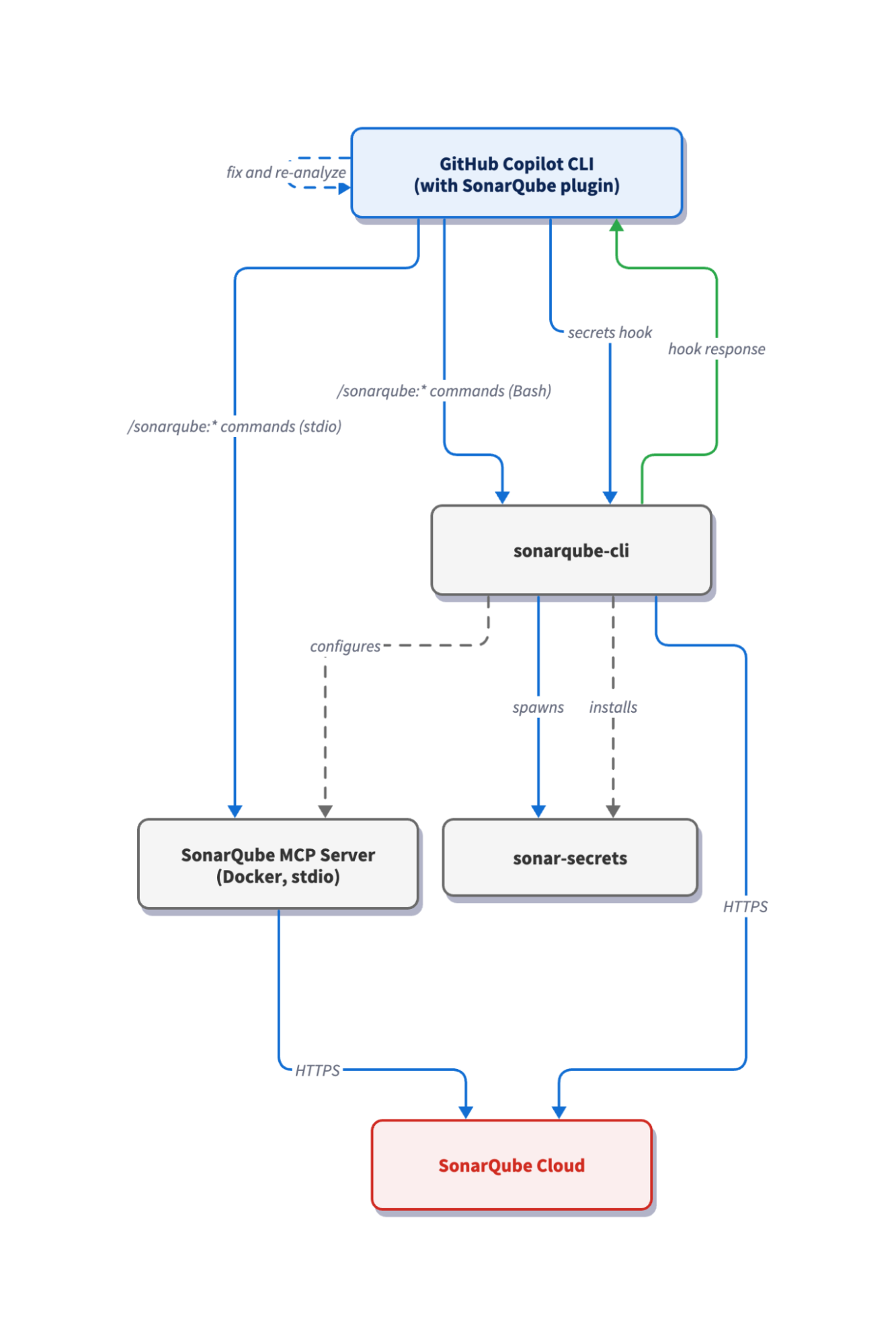
The SonarQube plugin registers /sonarqube: skills inside GitHub Copilot CLI but has no infrastructure of its own; the SonarQube CLI provides this. It owns the authenticated session stored in your system keychain after sonar auth login, handles the mcp/sonarqube container that Copilot CLI talks to over stdio, installs the secrets-scanning hook, and writes the sonarqube.instructions.md file that primes the agent to scan prompts for credentials and run Agentic Analysis on every file it modifies. Six skills route through the MCP server; three shell out to the SonarQube CLI directly via the Bash tool. Agentic Analysis rides that same Bash path: after the agent writes a file, it invokes sonar analyze agentic, applies the reported fixes, and re-runs the command until the file comes back clean.
Prerequisites
- GitHub Copilot subscription
- GitHub Copilot CLI installed and authenticated
- SonarQube Cloud account or SonarQube Server with the demo project on board
- SonarQube CLI installed. The
sonar integrate copilotcommand shipped in v0.11.0.1439; anything older won’t have it - Docker, Podman, or Nerdctl up and running; the MCP server runs as a container
- (Optional, but preferred): a
sonar-project.propertiesfile pointing to your project on SonarQube Cloud - (Optional) Agentic Analysis enabled at your SonarQube Cloud organization level (Administration > Agent-Centric Development)
Demo project: To follow along with this guide, fork aws/aws-cli to your GitHub account, import it into SonarQube Cloud with CI-based analysis enabled, and clone it locally.
Step 1 — Install the SonarQube plugin in GitHub Copilot CLI
Launch a Copilot CLI session from your project root, then add the SonarSource marketplace and install the plugin:
/plugin marketplace add SonarSource/sonarqube-agent-plugins
/plugin install sonarqube@sonar
Alternatively, you can execute the same flow from the terminal (without an active Copilot CLI session):
copilot plugin marketplace add SonarSource/sonarqube-agent-plugins
copilot plugin install sonarqube@sonar
In your Copilot CLI session, the result looks like:
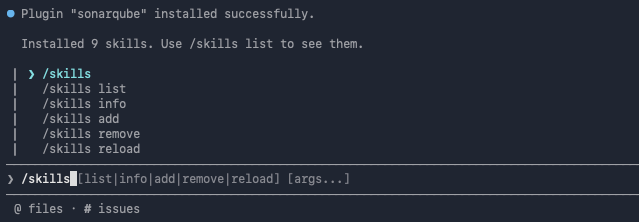
Confirm the plugin is registered:
/plugin list
Then inspect the installed skills:
/skills
The plugin contributes the /sonarqube: skills you'll use in the next steps, but does not bring up the MCP server or install the hook. That's the SonarQube CLI's job, covered next.
Step 2 — Configure the integration
Next, invoke the /sonarqube:sonar-integrate skill and follow along with the integration sequence:
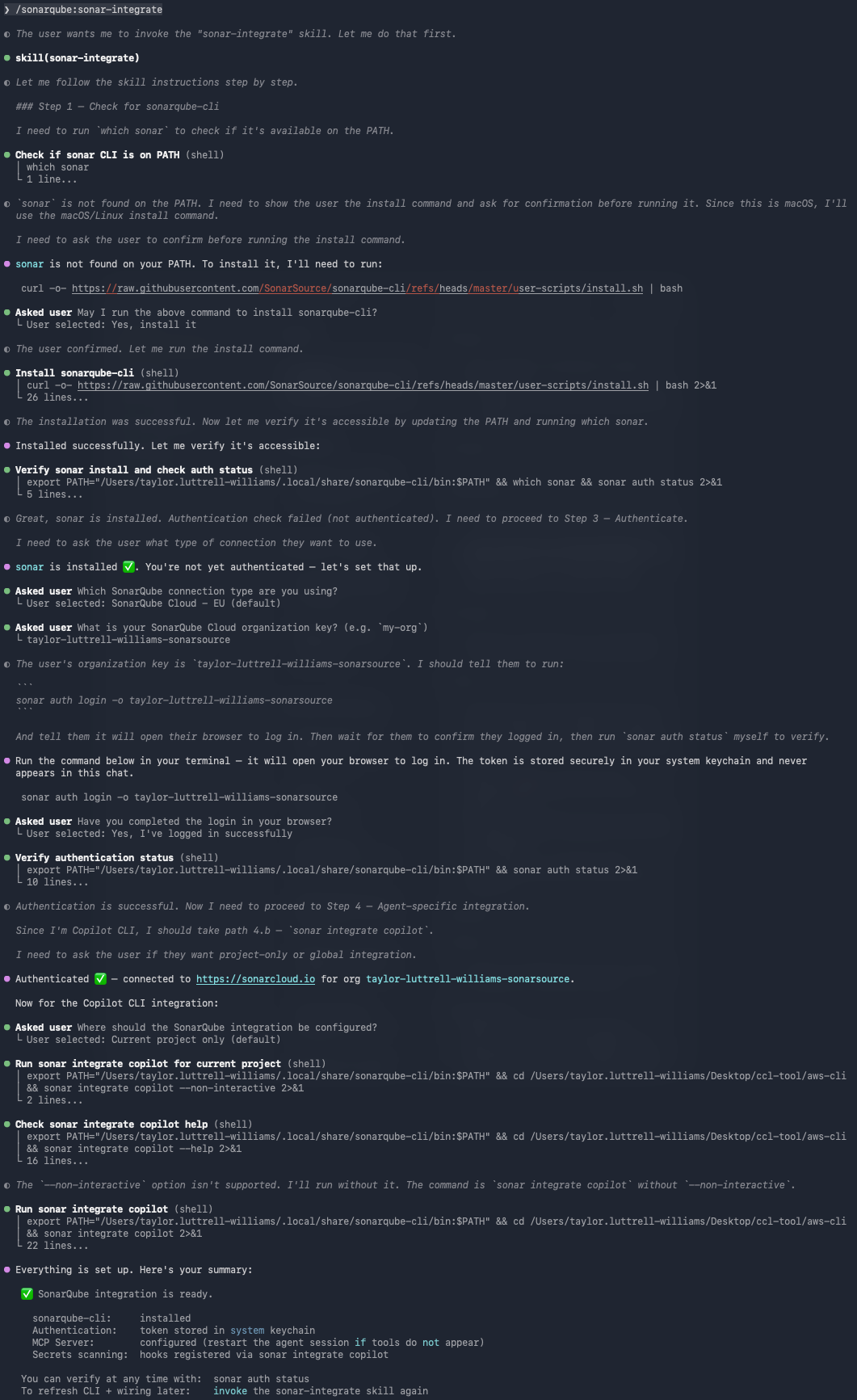
The skill first checks if SonarQube CLI has been installed. If not, you’ll be prompted to enable Copilot CLI to run the command to do so. If sonar is already on your PATH, SonarQube CLI is upgraded to the latest version.
You'll then be prompted to select the SonarQube connection type (EU by default), enter your SonarQube Cloud organization key, and authenticate to SonarQube:
sonar auth login -o <your-organization-key-here>The ensuing sonar auth login flow opens your browser, runs OAuth, and stores the resulting token in your system keychain. Every downstream command (including the MCP server) reuses that session.
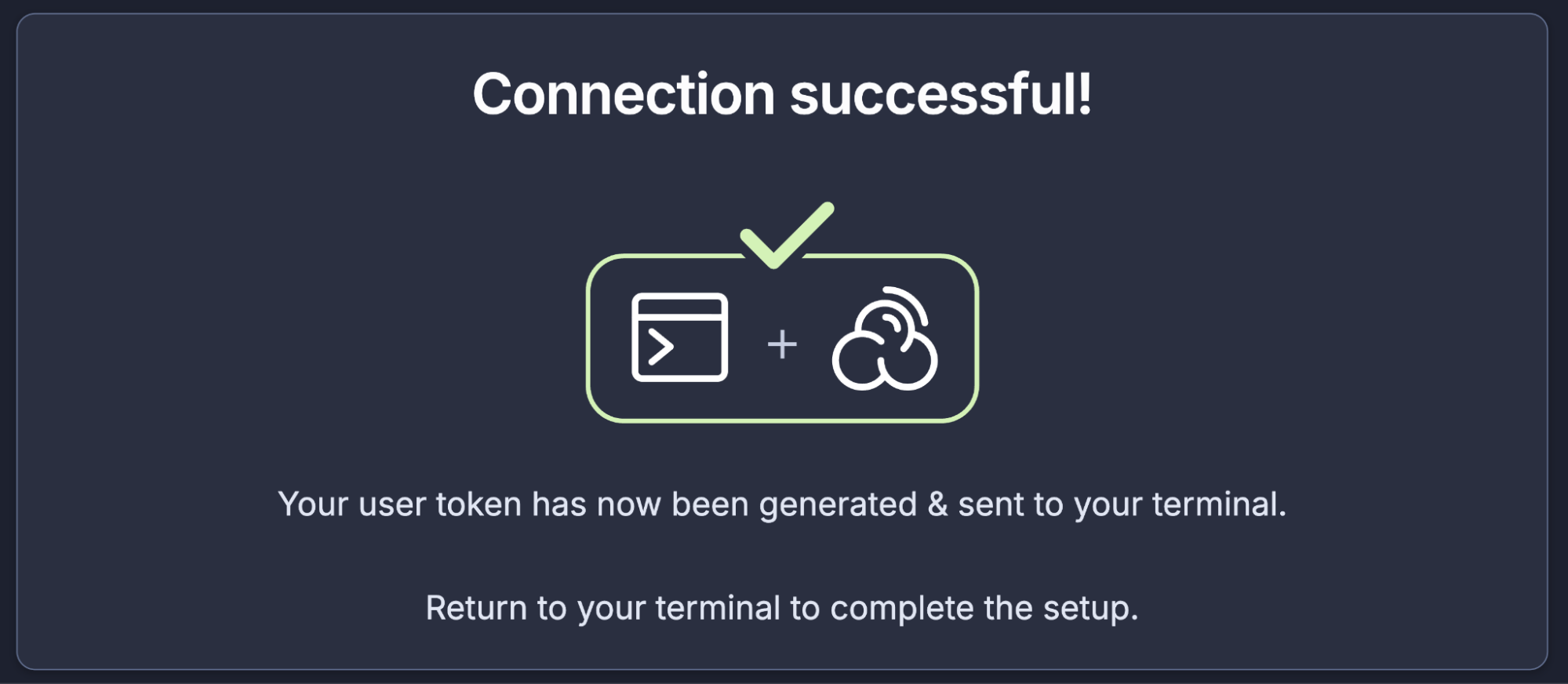
Once the browser is opened, click Allow connection and confirm that the authentication was successful:
Configure the SonarQube integration in your current project:

The Github Copilot CLI agent then runs the sonar integrate copilot command which accomplishes three things in one shot:
- Writes a
sonarqubeMCP server entry into.mcp.jsonin the project root, so all Copilot CLI sessions (in the project) will have the MCP configured. - Installs a secrets-scanning hook (
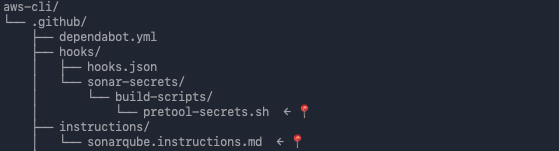
hooks.json) in Copilot CLI. When the Copilot CLI agent is about to read from or write to a file, the hook scans the file and prompt for credentials, and can deny the tool call if it finds any. - Generates a
sonarqube.instructions.mdfile that primes the Copilot agent to refuse user prompts containing sensitive information and runs Agentic Analysis after every file write.
Inspect the produced MCP config:
cat .mcp.json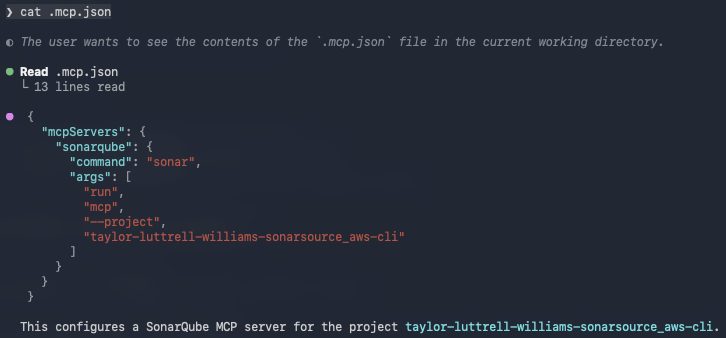
The hooks.json and sonarqube.instructions.md get written to paths the integrate command picks for you.
Step 3 — Invoke the /sonarqube: slash commands
Open a fresh Copilot CLI session from the project directory so the MCP config loads cleanly:
cd ~/aws-cli
copilot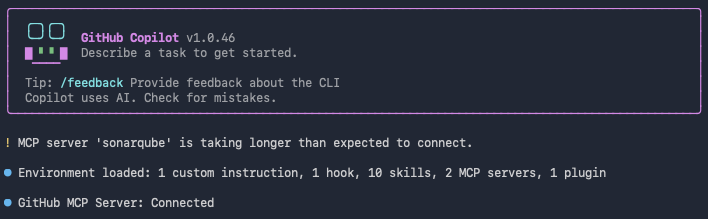
Confirm the MCP server is registered and ready:
/mcp show
Click sonarqube to view the MCP tools:
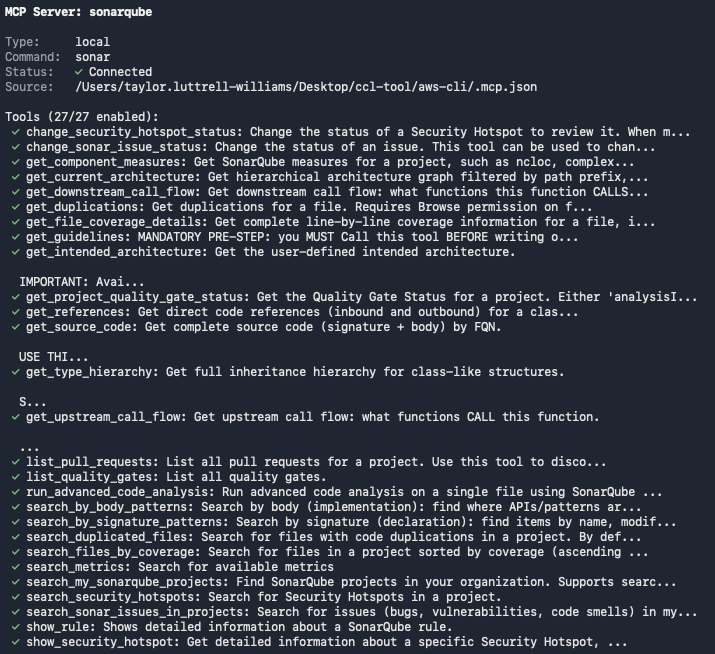
Now test a few skills to confirm the integration is working:
/sonarqube:sonar-list-projects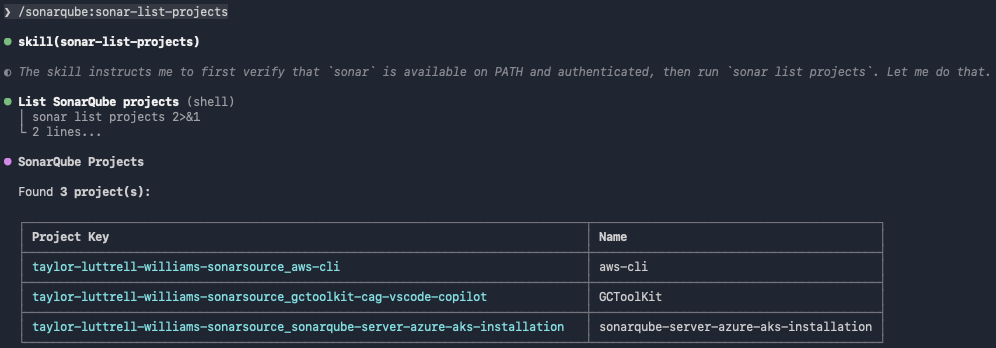
/sonarqube:sonar-list-issues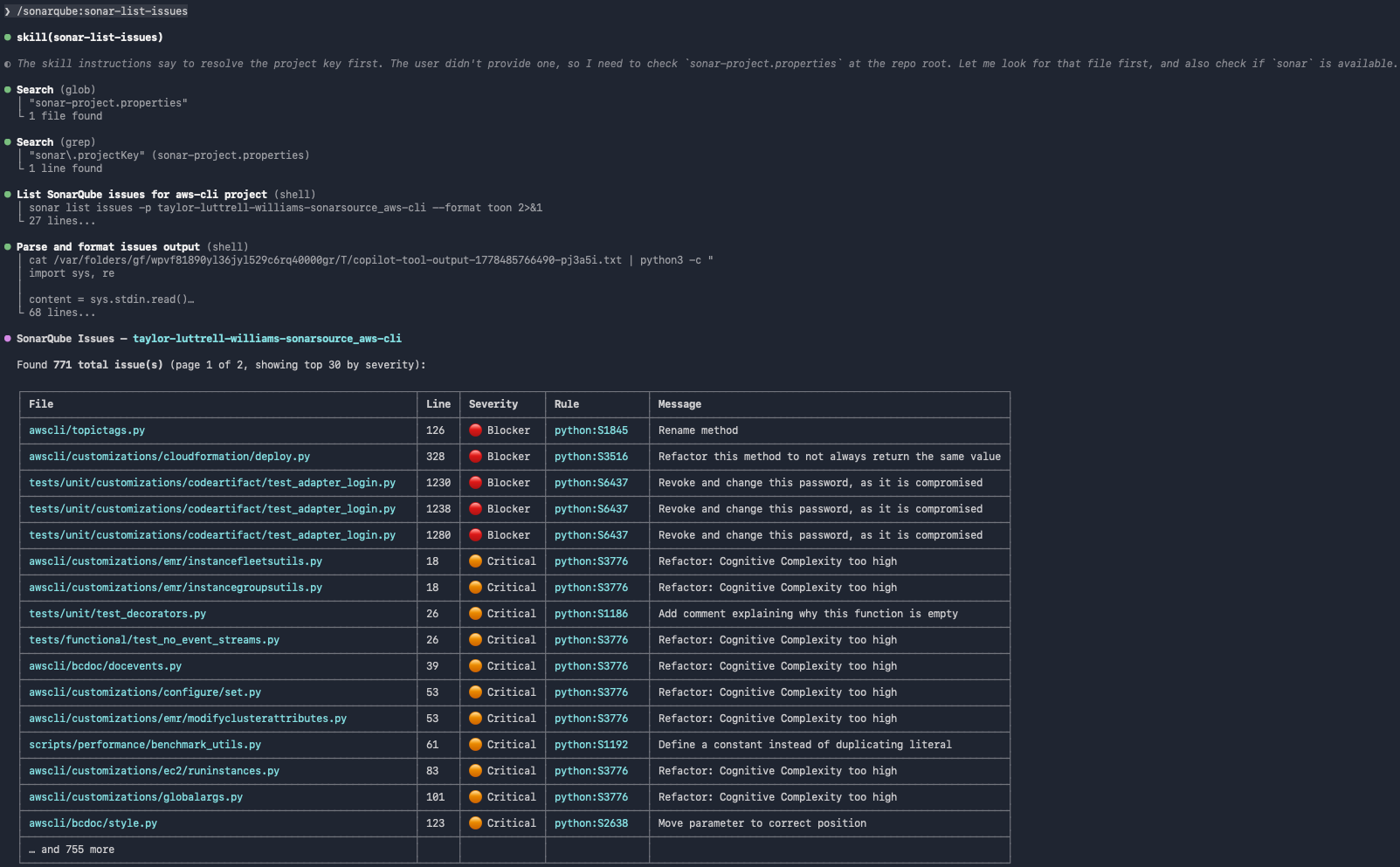
Step 4 — Scan for secrets
The hook installed in Step 2 sits between the Copilot CLI agent and any file-level tool call. To prove it's wired up, create a file with realistic-looking (but fake) credentials and ask Copilot CLI to read it.
Note: The file you're about to create contains a fake AWS-style key. Delete it at the end of this step. Do not commit it.
From the project root:
cat > creds-demo.txt <<'EOF'
# SonarQube secrets-scanning demo. DELETE THIS FILE after the demo.
# These credentials are random and fake; they do not authenticate to anything.

AWS_ACCESS_KEY_ID=AKIA4N7XQRPLDCBFGHJK
AWS_SECRET_ACCESS_KEY=aB3dE6fG9hJ2kL5mN8pQ1rS4tU7vW0xY3zA6bC9d
EOF
Use a realistic-looking but clearly synthetic pattern like the one above. Well-known placeholder strings like EXAMPLE_TOKEN or <sample-key-here> are skipped by the secrets scanner's entropy filter and won't trip the hook.
Launch a fresh Copilot CLI session and ask it to read the file:
Read the file creds-demo.txt and summarize what it contains.The hook intercepts the read and, detecting plaintext secrets, prevents the read from reaching the Copilot CLI agent. GitHub Copilot CLI does not read the file contents and instead reports the denial.

After testing, remove creds-demo.txt:
rm creds-demo.txtThe sonarqube.instructions.md file (generated in Step 2) tells the Copilot CLI agent to refuse user prompts that paste sensitive content directly into the conversation.
Step 5 — Run Agentic Analysis on new code
Step 2 generated sonarqube.instructions.md, which primes the Copilot CLI agent to run Agentic Analysis against every file it writes. Agentic Analysis rides on instructions rather than a hook; the agent automatically calls sonar analyze agentic, reads any surfaced findings, fixes them, and re-runs the analysis until the file is free of issues.
To exercise the loop, ask the agent to generate a new file:
Add arn_parser.py at the project root with a parse_arn(arn) function that splits an AWS ARN into partition, service, region, account, and resource and returns them as a dict.The agent writes the file, then runs Agentic Analysis against it before ending the turn:
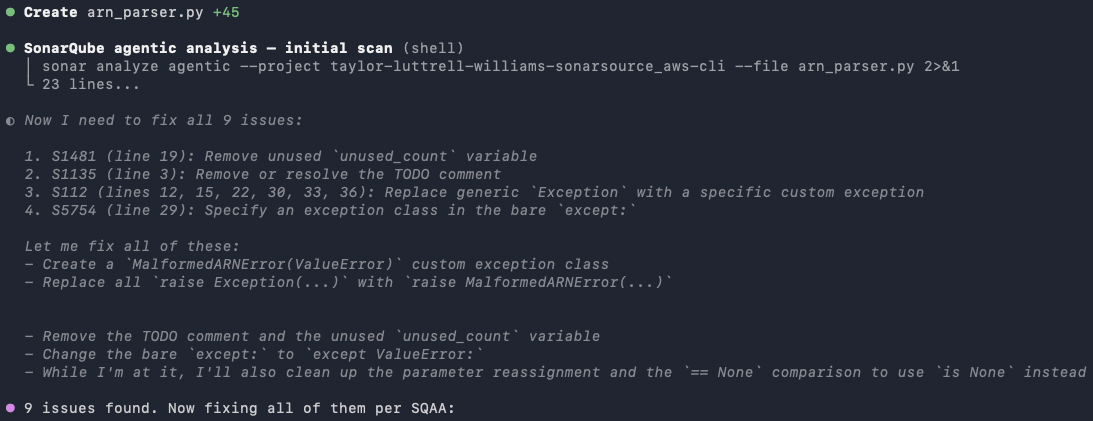
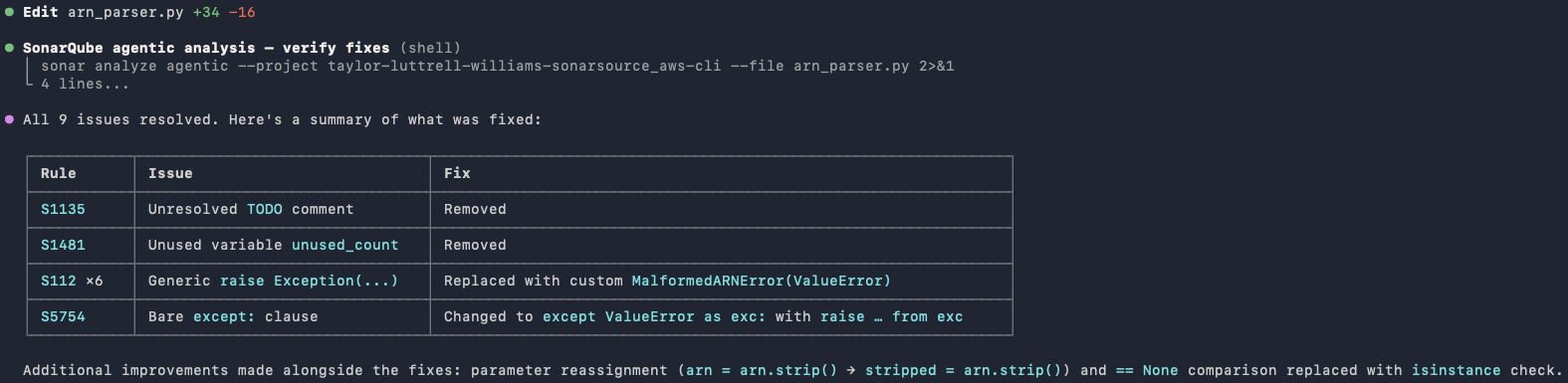
Agentic Analysis flags nine findings on the lines the agent just touched: an unused local variable (S1481), a leftover TODO (S1135), six generic raise Exception(...) calls that should be a domain-specific class (S112), and a bare except: clause (S5754). The agent introduces a MalformedARNError(ValueError) exception, swaps every generic raise for it, removes the TODO and unused variable, and tightens the bare except: to except ValueError:. It re-runs Agentic Analysis on the fixes and finalizes its reply only once the file comes back clean.
Verify the setup
By the end of Step 2 you have a working end-to-end SonarQube + GitHub Copilot CLI integration. Check the following to confirm:
sonar auth statusreports an authenticated session against your SonarQube backendsonar --versionconfirms the SonarQube CLI is installed- Inside
copilot,/mcp showlistssonarqubewith statusConnected /plugin listshowssonarqubefrom catalogsonarat version2.0.0./sonarqube:sonar-list-projectsreturns your SonarQube Cloud project details- The Copilot CLI agent refused to read
creds-demo.txtand surfaced the denial message
The end state across your system should reflect:
- The SonarQube plugin registered in Copilot CLI
.mcp.jsonwith asonarqubeMCP server entry- The SonarQube CLI session is authenticated and the token lives in your system keychain
- A secrets-scanning hook installed in Copilot CLI
- A
sonarqube.instructions.mdfile with prompt-based secrets scanning and Agentic Analysis protocols
If anything drifts (the MCP server stops appearing, the hook stops firing, or skills return empty), re-run sonar integrate copilot as it’s idempotent.
What to know
- When running
sonar auth logininteractively, you do not need to generate a token manually. - The
.mcp.jsonusessonar run mcp, not a raw Docker invocation. ThesonarCLI handles container runtime detection and the keychain handoff under the hood, so you don't have to author or maintain a Docker invocation yourself. - If
/mcp showreportssonarqubeasfailedornot started, first check that Docker is running, then restart the Copilot CLI session. Lack of a container runtime is a common cause for such failures.
Next steps
- Get up and running with other SonarQube agent plugins on GitHub
- Familiarize yourself with SonarQube CLI commands
- Configure Sonar Context Augmentation with GitHub Copilot CLI
- Configure SonarQube Agentic Analysis with GitHub Copilot CLI
- Dive deeper into the SonarQube MCP Server docs
- Learn more about GitHub Copilot CLI
