

TL;DR overview
- SonarQube Remediation Agent is a GitHub App that automatically generates and validates code fixes for quality gate failures, delivering them as reviewable pull requests.
- The agent automates fixes for Java, JavaScript, TypeScript, and Python, focusing on maintainability, reliability, and security issues to reduce developer context-switching.
- A built-in verification loop re-scans every AI-generated fix in a sandbox to ensure the original issue is resolved without introducing new vulnerabilities.
- Developers maintain full control by reviewing the fix PR, which includes a summary of resolved violations and links to the SonarQube Cloud dashboard.
The SonarQube Remediation Agent monitors pull requests on SonarQube Cloud for quality gate failures, generates validated code fixes, and delivers them as a separate PR targeting your branch. You review and merge the fix PR like any other contribution.
This blueprint walks through the full setup and first use: installing the GitHub App, triggering the agent on a failing PR, reviewing the fix it produces, and understanding what the agent handles versus what stays with you.
When to use this
Your team uses SonarQube Cloud with GitHub, and PRs regularly fail the quality gate due to maintainability, reliability, or security issues. Instead of context-switching between the SonarQube issue list and your editor to fix each violation, you want the mechanical fixes handled automatically so you can focus on the issues that require judgment.
What you'll achieve
- The SonarQube Remediation Agent GitHub App installed and connected to your organization
- An automated developer workflow where quality gate failures on PRs trigger code fix generation, validation, and delivery as a reviewable PR
- A clear understanding of which issues the agent fixes and which remain your responsibility
Architecture

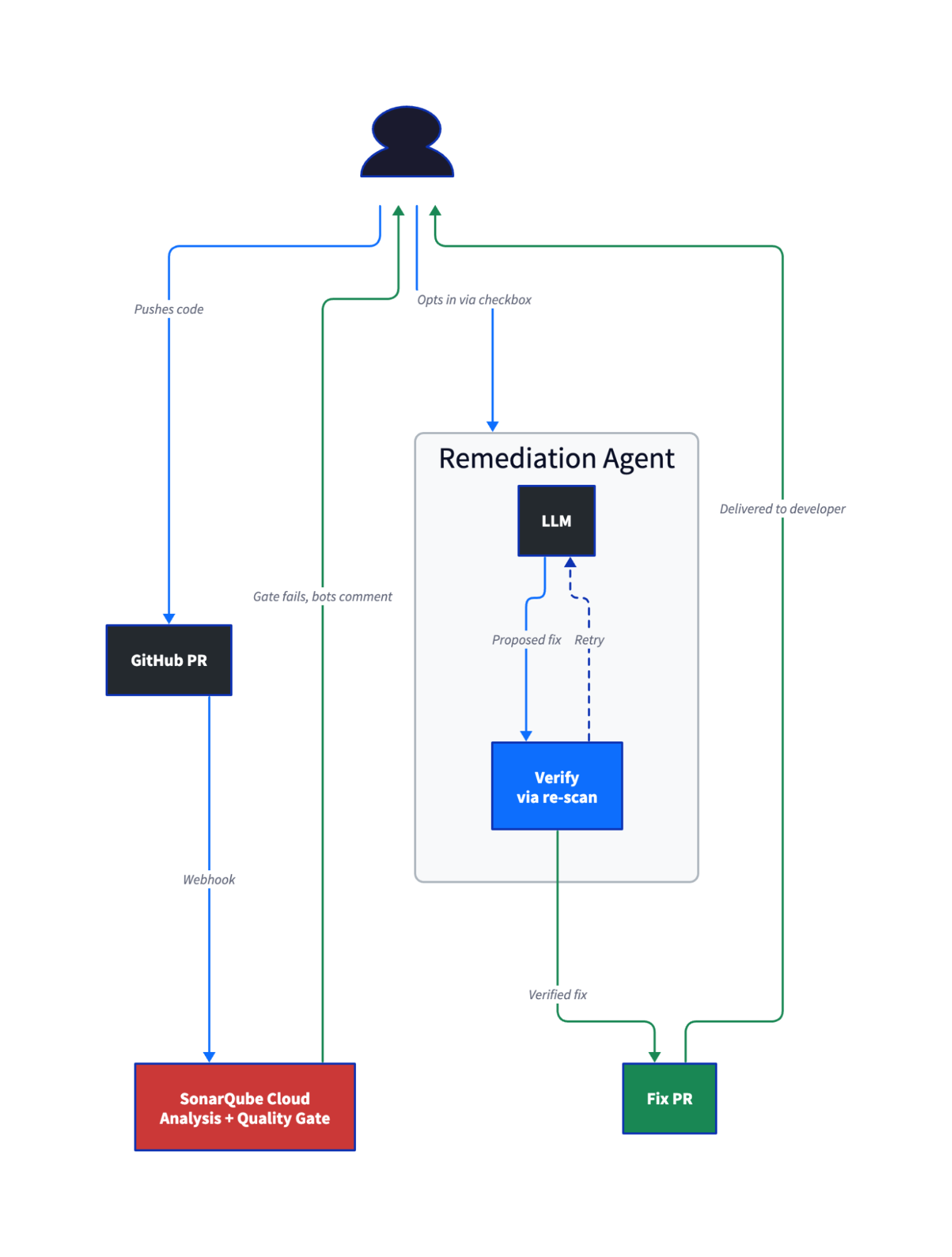
The code verification loop is what separates this from a generic AI fix suggestion. The agent generates a fix, applies it in a sandbox, and re-scans the patched code using Sonar's own static code analysis engine. If the fix introduces new issues or fails to resolve the original one, it gets discarded. Only validated fixes reach the software developer.
The agent never commits directly to your branch. Fixes arrive as a separate PR, giving you full control over what gets merged.
Prerequisites
- SonarQube Cloud account on a Team (annual) or Enterprise plan (the agent is in beta, free during beta)
- GitHub organization where you have admin access (required to install GitHub Apps)
- A private GitHub repository already connected to SonarQube Cloud with either automatic analysis or CI-based analysis configured
- A quality gate configured for the project (the default quality gate works)
Step 1: Remediation Agent installed and enabled
Navigate to your SonarQube Cloud organization: Administration > AI capabilities > AI agent.

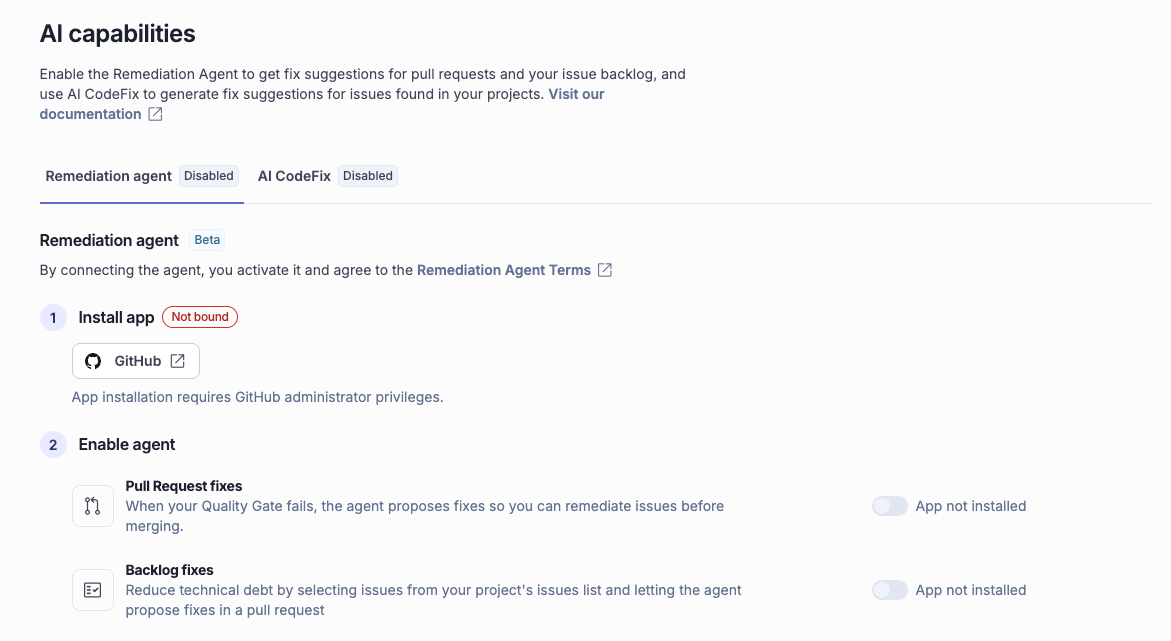
Click Install app > GitHub. This redirects you to github.com/apps/sonarqube-agent.
Permissions requested by the SonarQube Agent GitHub App:

- Read and write access to code and pull requests

- Read-only access to issues and metadata
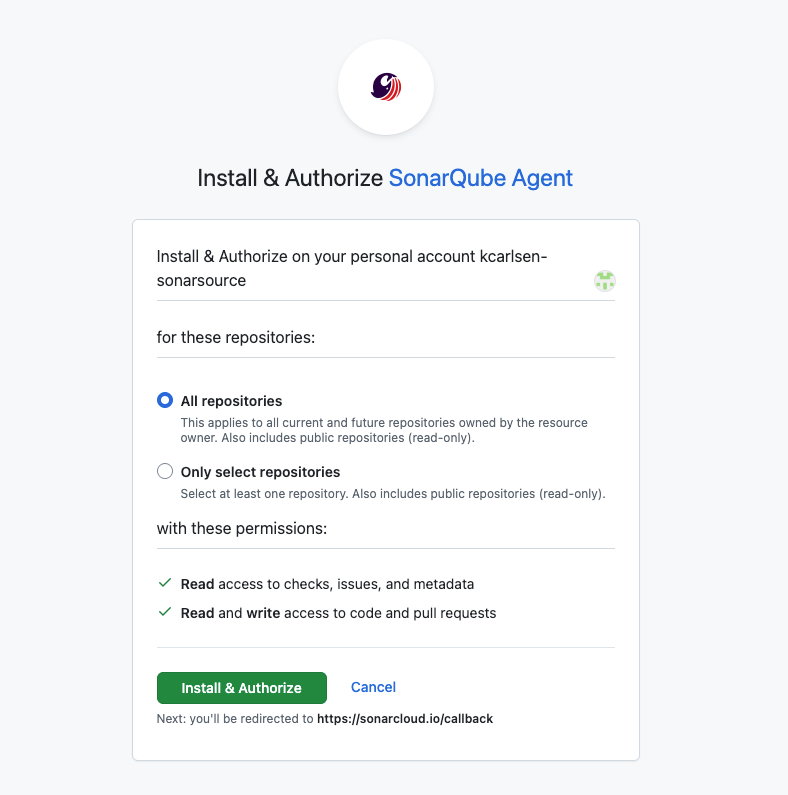
Select your GitHub organization, choose Only select repositories or All repositories, and click Install & Authorize.
After installation, both Pull request fixes and Backlog fixes should now show as enabled.

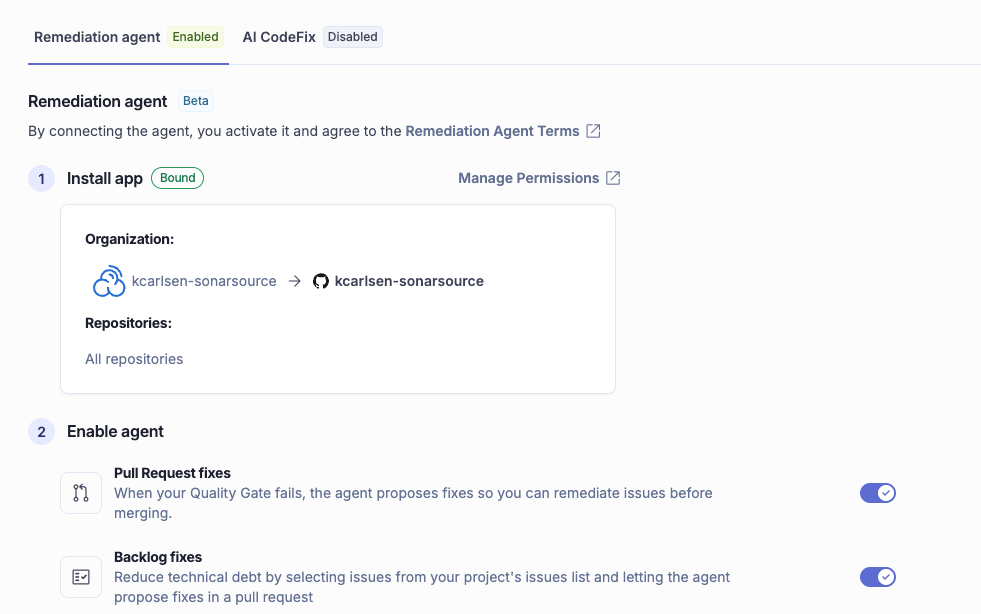
You may see an onboarding screen titled "New: delegate your backlog to the remediation agent" during this flow. This is informational and requires no action for the PR workflow.
The permissions are tightly scoped: the app needs read/write on code and pull requests to create fix PRs, and read-only on issues and metadata. If your organization has strict GitHub App policies, this is the scope your security team will want to review.
Step 2: PR with a failing quality gate
You need a pull request that introduces issues SonarQube can detect. If you already have a PR with a failing quality gate, skip to Step 3.
To create one intentionally, push a branch with code that violates supported rules. For a Java project:
import java.util.ArrayList; // unused import — triggers java:S1128

import java.util.HashMap;   // unused import — triggers java:S1128

public class Example {

    public String process(String input) {

        return input.toUpperCase();

    }

}
Open a PR from this branch against your main branch. SonarQube Cloud analyzes it automatically (if automatic analysis is configured) or your CI pipeline triggers the analysis.
Wait for the quality gate result. Analysis typically completes in one to three minutes.
Step 3: Agent comment appears on the PR
When the quality gate fails, you will see a comment on the PR. The sonarqube-agent bot lists the issues it found, and also shows an estimated time saved (~12 minutes for the issues shown) and a checkbox to trigger fix generation.

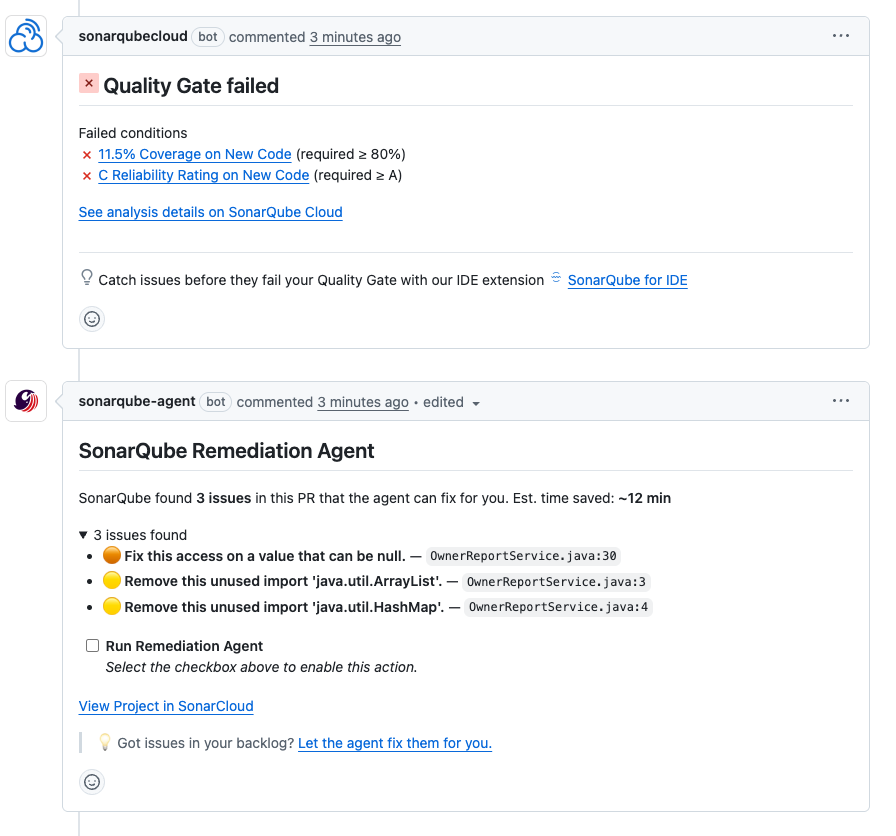
The agent only posts this comment when the quality gate fails. If the issues don't fail the gate, no comment appears. And if the PR introduces more than 20 issues, the agent does not trigger at all — there is no partial processing for PRs exceeding that threshold.
Step 4: Fix generation triggered
Check the “Run Remediation Agent” checkbox in the sonarqube-agent bot comment to start fix generation.

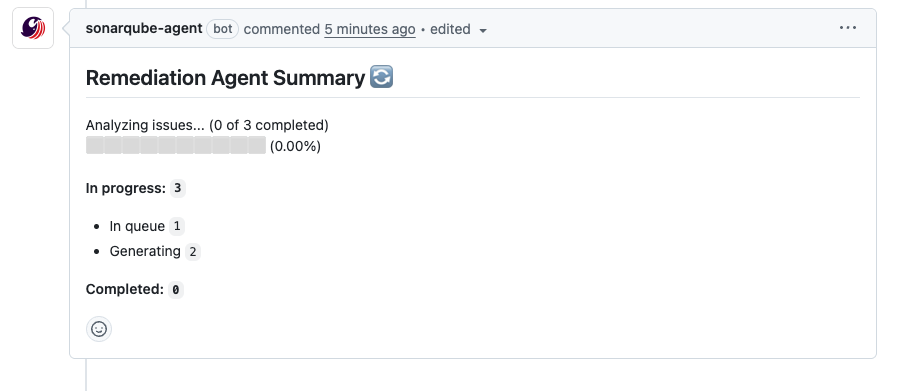
The agent sends code snippets and rule context to an LLM, receives proposed fixes, applies each fix in a sandbox, and re-scans with the Sonar analysis engine to validate the fix resolves the original issue without introducing new ones. The fix PR includes only fixes that pass validation.
Processing time depends on the number and complexity of issues. Expect a few minutes.
Step 5: Fix PR reviewed and merged
The agent creates a single PR targeting your original branch (not the main branch). This PR contains:
- A "Fixed Issues" summary with expandable details for each resolved violation
- One commit per fixed issue, with the issue key in the commit message
- Links to the corresponding issues in SonarQube Cloud
- The SonarQube Agent listed as the PR author
Fixable issues are violations the agent can resolve automatically. These appear with their severity and a description linking to the rule in SonarQube Cloud. In a Java PR with unused imports, this section lists each java:S1128 violation with a description like "Remove this unused import 'java.util.ArrayList'."
Issues requiring manual fix are violations the agent identified but cannot auto-fix. These are issues matching rules on the unsupported list that the agent excludes because they are too complex for automated resolution. For these, SonarQube for IDE's connected mode provides rule context and guidance directly in your editor.

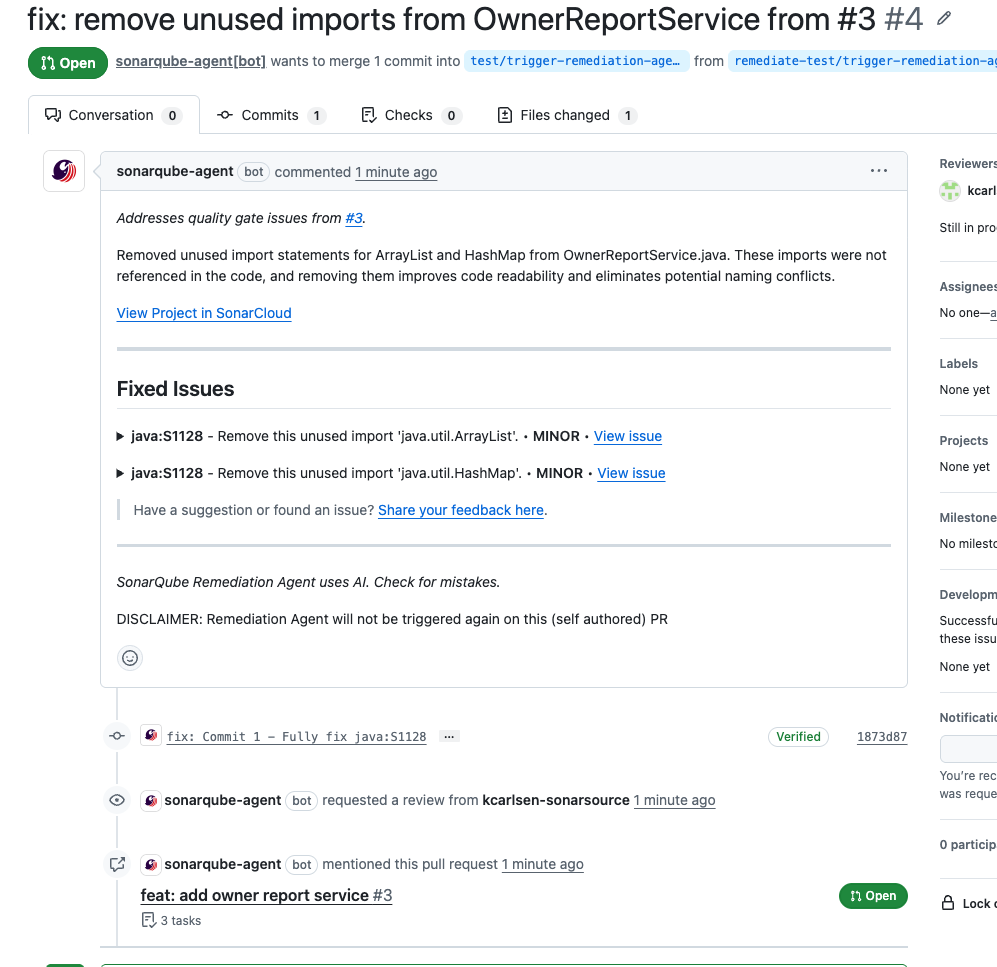
Review the changes the way you would any PR. The agent removed the dead code; confirm the fix is correct and doesn't affect anything else. SonarQube Cloud automatically analyzes the fix PR too, so you can check its quality gate status before merging.
Merge the fix PR into your original branch when you're satisfied.
Step 6: Remaining issues addressed
Merging the fix PR triggers a new analysis cycle on your original PR. The agent resolves the issues it can. Everything else stays with you.
Sometimes, the quality gate may still fail after the agent's fixes. Gate conditions include metrics the agent cannot address: test coverage requires writing tests, and rules on the unsupported list require manual fixes. If the gate failure was caused solely by issues the agent fixed, it passes. If other conditions contributed (as they sometimes do), you handle those separately.
If you push additional commits and the quality gate fails again on new issues, the agent re-triggers and posts a new comment with the updated fixable issues. This cycle continues until the gate passes or no fixable issues remain.
Step 7: Agent activity verified in SonarQube Cloud
Navigate to the project in SonarQube Cloud and open the Agent activity page. Each fix session shows:

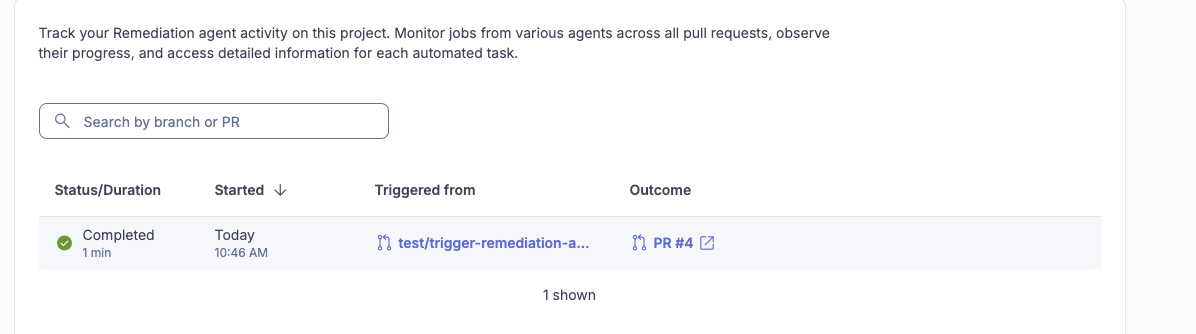
- Status (completed, in progress, or failed)
- Duration of fix generation
- Submission timestamp
- Source (the PR branch name)
- Outcome with a link to the generated fix PR
This page provides a full audit trail of what the agent did, when, and on which branches.
Managing permissions and disabling the agent
Toggle workflows independently: On the AI agent admin page in SonarQube Cloud (Administration > AI capabilities > AI agent), you can enable or disable PR fixes and backlog fixes separately. Disabling PR fixes stops the agent from commenting on failing PRs while keeping backlog fixes active (or vice versa).
Manage repository access: Control which repositories the agent can access from two places:
- SonarQube Cloud: Organization > Administration > AI capabilities > AI agent > Manage Permissions
- GitHub: Organization > Settings > Third-party Access > GitHub Apps > SonarQube Agent > Configure
Remove the agent entirely: Suspending the GitHub App blocks access temporarily and is the easiest option if you plan to re-enable later. Uninstalling the app removes it completely; you'll need to go through the full installation flow again to restore it.
What to know
- GitHub only. The Remediation Agent requires the SonarQube Agent GitHub App. Teams using GitLab, Bitbucket, or Azure DevOps cannot use this feature at this time.
- 20-issue threshold. If a PR introduces more than 20 issues, the agent does not trigger. No partial processing occurs — it's all or nothing at or below 20.
- Unsupported rules. Certain rules per programming language are excluded because they are too complex for automated resolution. The full list is in the Remediation Agent documentation. Issues matching these rules appear under "Issues requiring manual fix" in the agent comment. For details on the PR workflow specifically, see the agents in your GitHub pull request docs.
- No coverage fixes. The agent fixes code issues (maintainability, reliability, security). It cannot write tests or improve coverage metrics. If your gate fails on coverage, that remains manual work.
- Supported languages. Java, JavaScript, TypeScript, Python, and all secrets detection rules.
- Beta status. The Remediation Agent is free during beta. It will become a paid feature at GA (no date announced).
Next steps
- Fix backlog issues: The companion blueprint covers using the Remediation Agent to fix existing issues on your main branch via the "Assign to Agent" workflow in SonarQube Cloud.
- Fix issues in your editor: SonarQube for IDE with connected mode provides AI CodeFix for individual issue suggestions during local development — a different tool for a different stage of the workflow.
- Configure quality gates: The SonarQube Cloud quality gates documentation covers how quality gates work and links to configuration options.
