

Start your free trial
Verify all code. Find and fix issues faster with SonarQube.
始めましょうTL;DR overview
- Integrating the SonarQube MCP server with Kiro IDE connects Sonar's code analysis capabilities to Kiro's AI-native agentic workflow.
- The setup uses Docker and SonarQube Cloud credentials to authenticate the MCP server and enable code quality queries from within Kiro.
- Kiro's agents can access real-time SonarQube data - including open issues, security vulnerabilities, and quality gate status - without context switching.
- The integration supports the vibe-then-verify approach by giving agentic development a continuous verification layer.
Developers are witnessing a paradigm shift. The era of “agentic AI” is here, and companies like Kiro IDE are at the forefront, allowing us to move from simple code completion to full-blown spec-driven development. But an autonomous agent is only as good as the context it possesses.
That is where the SonarQube Model Context Protocol (MCP) Server comes in.
By integrating SonarQube’s deep static analysis directly into Kiro via MCP, you allow Kiro’s agents to write high-quality, secure, and reliable code that adheres to your organization’s quality gates. Most importantly, it empowers the agent to perform a continuous verification on its own work, ensuring you can effectively review AI code for vulnerabilities before it is even committed.
In this guide, you’ll learn how to bridge these two powerful tools.
Prerequisites
Before you get into configuration, ensure you have the following ready:
- Kiro IDE: Installed and running (v0.5.0 or later recommended for native MCP support).
- Docker: The SonarQube MCP server runs as a Docker container. Ensure Docker Desktop or the daemon is running.
- SonarQube access:
- SonarQube Cloud: You will need your Organization Key and a User Token.
Step 1: Gather your credentials
First, we need to securely identify your SonarQube instance.
- Generate a token:
- In SonarQube, navigate to My Account > Security.
- Generate a new token (Type: User Token recommended).
- Copy this token immediately—we will refer to it as YOUR_SONAR_TOKEN.
- Identify your connection details:
- For SonarQube Cloud: Note your Organization Key (found in your organization overview).
Step 2: Configure Kiro IDE
Kiro features native MCP support, allowing it to spin up and communicate with local MCP servers seamlessly. We will configure this using Kiro’s settings files.
You can configure this at the user level (global) or workspace level (project-specific). For this guide, we will use the user level so your AI agent has these superpowers across all your projects.
- Open the Kiro IDE.
- Open the Command Palette (Cmd+Shift+P on macOS / Ctrl+Shift+P on Windows/Linux).
- Type and select “Kiro: Open user MCP config (JSON)”.
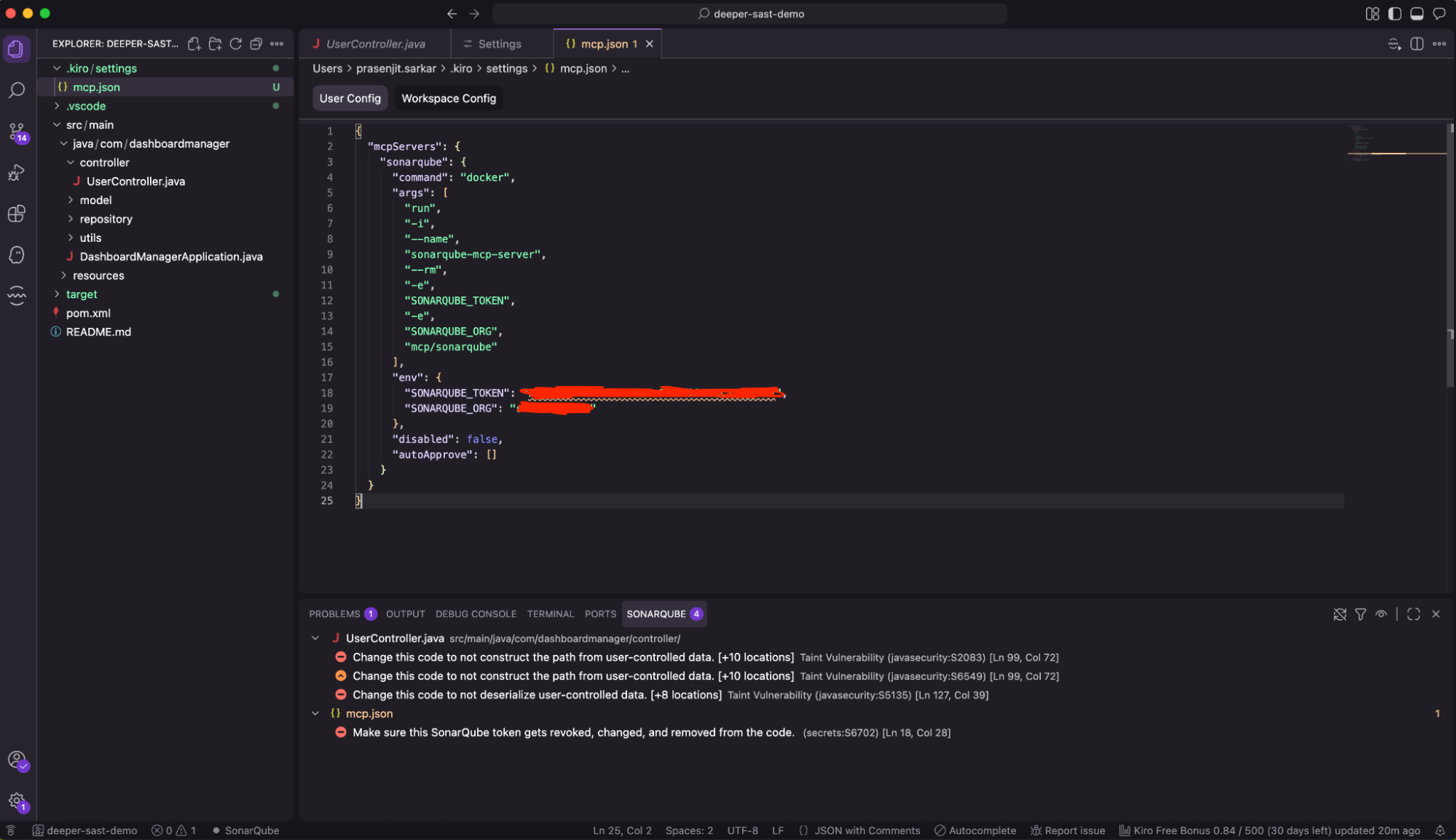
This will open ~/.kiro/settings/mcp.json.
Step 3: Add the SonarQube Server definition
We will add a new entry to the mcpServers object. The SonarQube MCP server is distributed as a Docker image (mcp/sonarqube).
Copy the configuration below that matches your setup (Cloud) and paste it into your mcp.json file.
Configuration for SonarQube Cloud
{

  "mcpServers": {

    "sonarqube": {

      "command": "docker",

      "args": [

        "run",

        "-i",

        "--name",

        "sonarqube-mcp-server",

        "--rm",

        "-e",

        "SONARQUBE_TOKEN",

        "-e",

        "SONARQUBE_ORG",

        "mcp/sonarqube"

      ],

      "env": {

        "SONARQUBE_TOKEN": "<YourSonarQubeToken>",

        "SONARQUBE_ORG": "<YourOrganizationName>"

      },

      "disabled": false,

      "autoApprove": []

    }

  }

}
Important note: Kiro handles the environment variables securely. By defining them in the env block and passing them with the -e flag in args (without values), we pass the values securely into the Docker container.

Step 4: Verify the integration
Once you save the mcp.json file, Kiro should automatically attempt to start the server.
- Look for the MCP Servers indicator in the Kiro status bar or panel (often a plug icon or listed under “Connected Servers”).
- You should see sonarqube listed with a green “Connected” status.
Putting it to work
Now that your agent is connected to your quality infrastructure, you can issue natural language commands that leverage SonarQube’s data.
Open a chat with Kiro and try these prompts:
- “Analyze the current file for any security hotspots using SonarQube.”
- “Check the quality gate status for this project.”
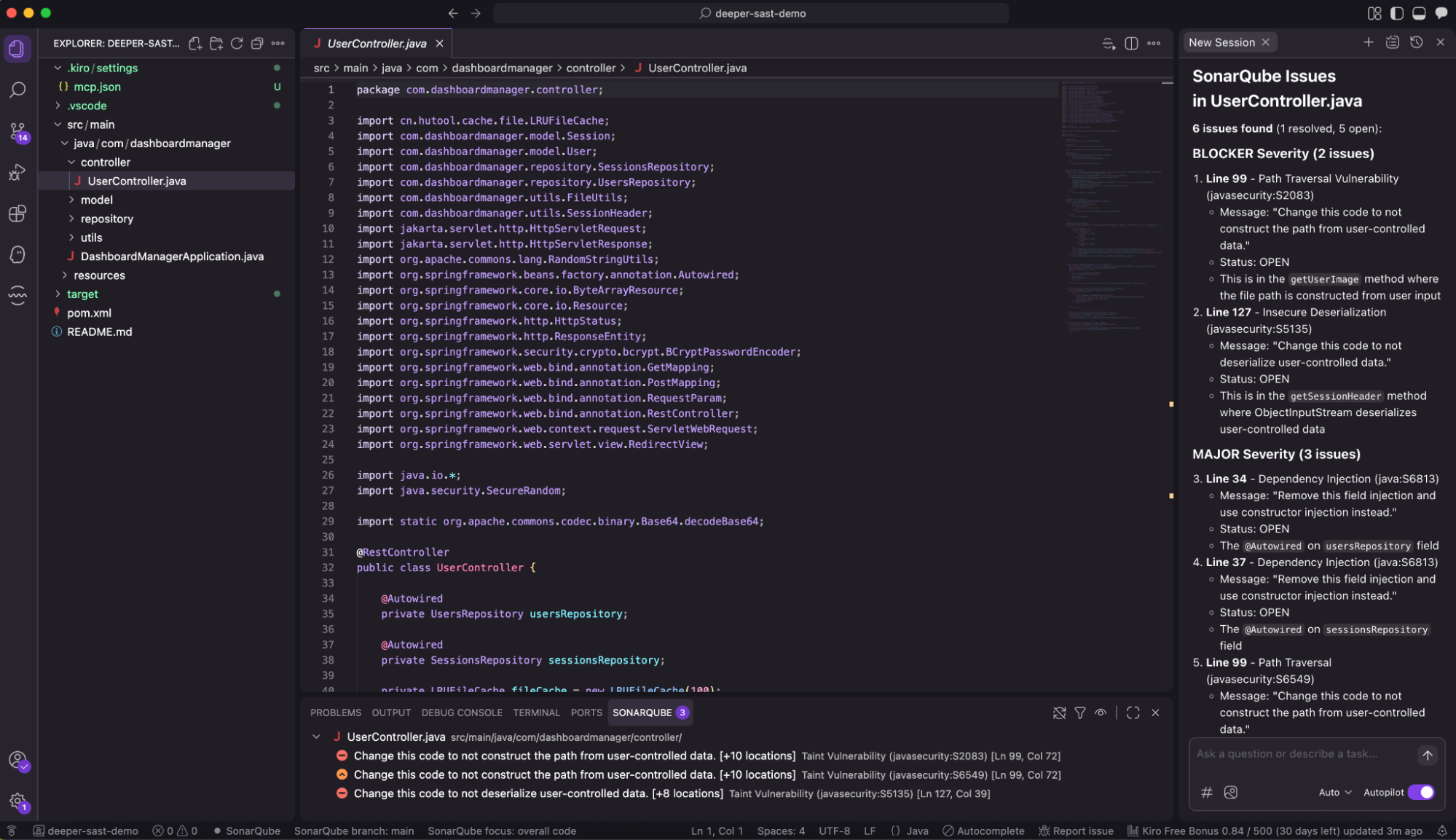
- “Are there any reliable issues in UserController.java that I should fix?”
The agent will use the MCP tools (get_project_quality_gate_status, search_sonar_issues, etc.) to fetch real-time data and guide its coding decisions.
Conclusion
By integrating SonarQube MCP Server with Kiro, you’ve effectively closed the loop between coding and quality assurance. You are no longer just generating code—you are performing an automated code review from the very first keystroke.
Start your secure AI coding journey: Install the SonarQube MCP server.