Publishing is the act of writing data from a local project, where only you can see it, to a repository project, where it can be accessed by the whole team. You can publish snapshot data from either Structure101 Studio or Structure101 Build. Models, Structure Specs, and Architecture diagrams can additionally be published from Structure101 Studio (and used for build time checking by Structure101 Build, and/or for edit-time visualization and checking within Structure101 Workspace).
To publish from Structure101 Studio, click on Project/publish (or equivalent button on the main toolbar).
The first screen of the publish wizard lets you create or select a repository and the project within that repository:
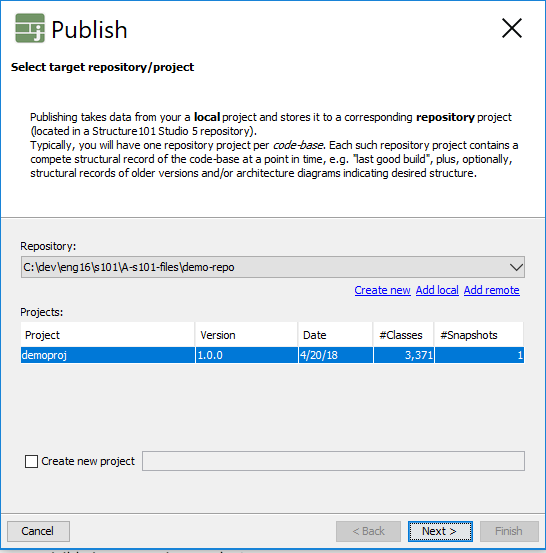
The UI lets (or forces!) you to first add to a dropdown list of repositories that Studio knows about. If you've already opened a repository then you can just select it from the list - and the projects contained in that repository will be displayed for you to select from.
If you want to open a repository that you have not opened before, then you need to first click on "Add local" (directory) or "Add remote" (URL), or "Add third-party" (cloud or database properties file). See add/switch repositories for more details.
Or if you want to create and publish to a new local filesystem repository, you click on "Create".
In each case you can either select an existing project within the repository, or select and give the name of a new project that you wish to add to the repository.
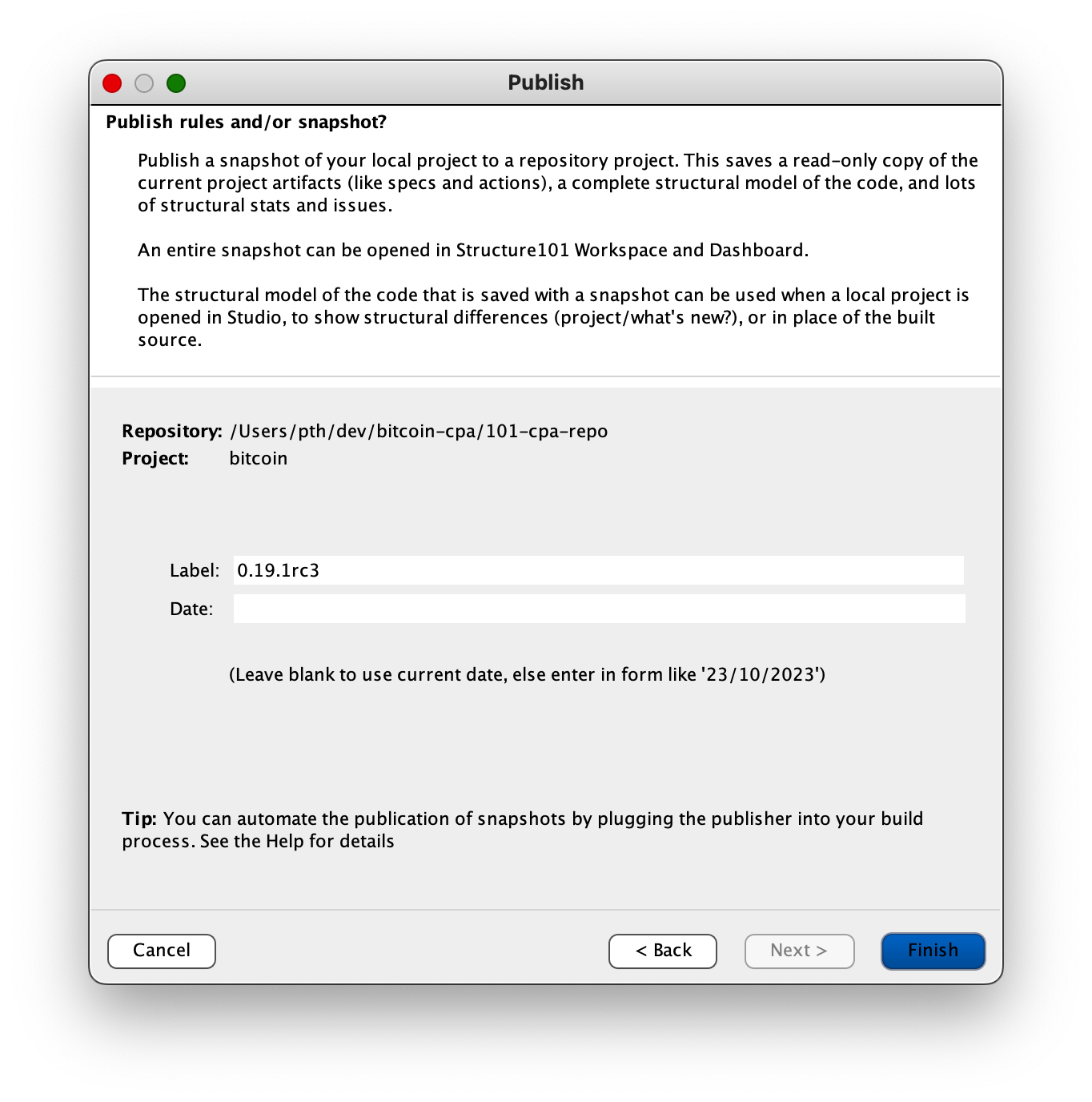
With the repository and project selected, you click "next" to go the next panel of the wizard where you specify the snapshot label, and optionally the date for the snapshot (the current date is used if no date set) before clicking "Finish":